Deploy on Akash with Console Air using your own Keplr wallet — no managed billing, no time limits, full blockchain control.
Console Air is the self-custody, self-hostable counterpart to Akash Console. It’s the same visual deploy UI you’ve used on console.akash.network, with the managed-wallet flows removed and the self-custody flows kept. You run it locally (or host your own instance), connect your wallet, and sign every transaction yourself.
Not sure if Console Air is right for you? See Choosing Your Console.
Prerequisites
Before you start, you need:
-
A Keplr Wallet
- Install Keplr (Chrome, Brave, Edge, or mobile)
-
AKT Tokens in Your Wallet
- Minimum: 1 AKT (for ACT minting + gas fees)
- Recommended: 5+ AKT for comfortable testing
-
Where to Get AKT:
- Osmosis DEX - Swap from other Cosmos tokens
- Centralized exchanges: See full list
- Bridge from other chains
-
A running Console Air instance
- Local: clone
akash-network/console-airand run it (see the repo README) - Self-hosted: deploy your own instance (see Self-hosting guide)
- Local: clone
Step 1: Open Console Air
Open your Console Air instance in the browser (typically http://localhost:3000 for a local run, or your self-hosted URL).
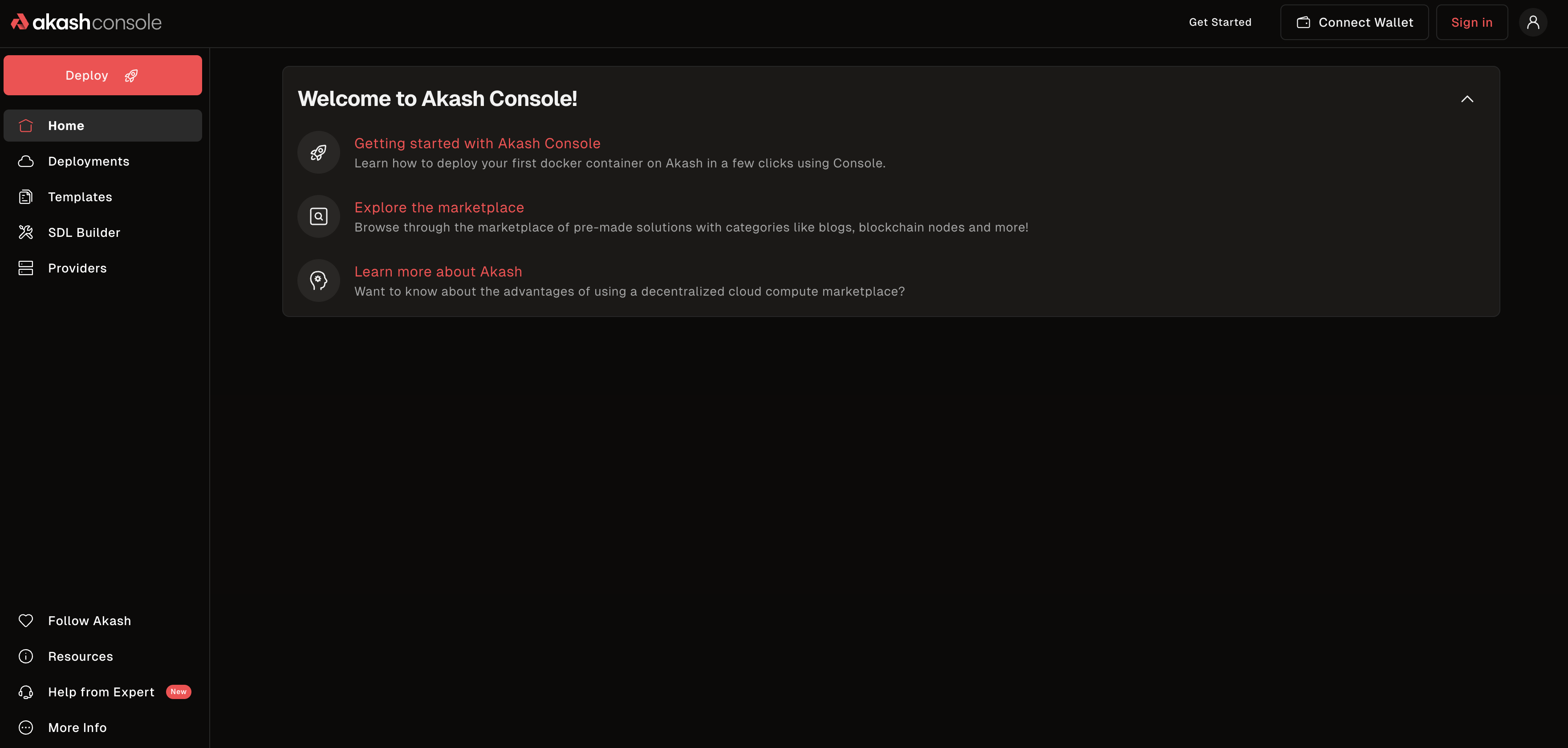 Console Air homepage — click “Connect Wallet” in the top right
Step 2: Connect Your Wallet
-
Click “Connect Wallet” in the top right corner.
-
Pick your wallet provider:
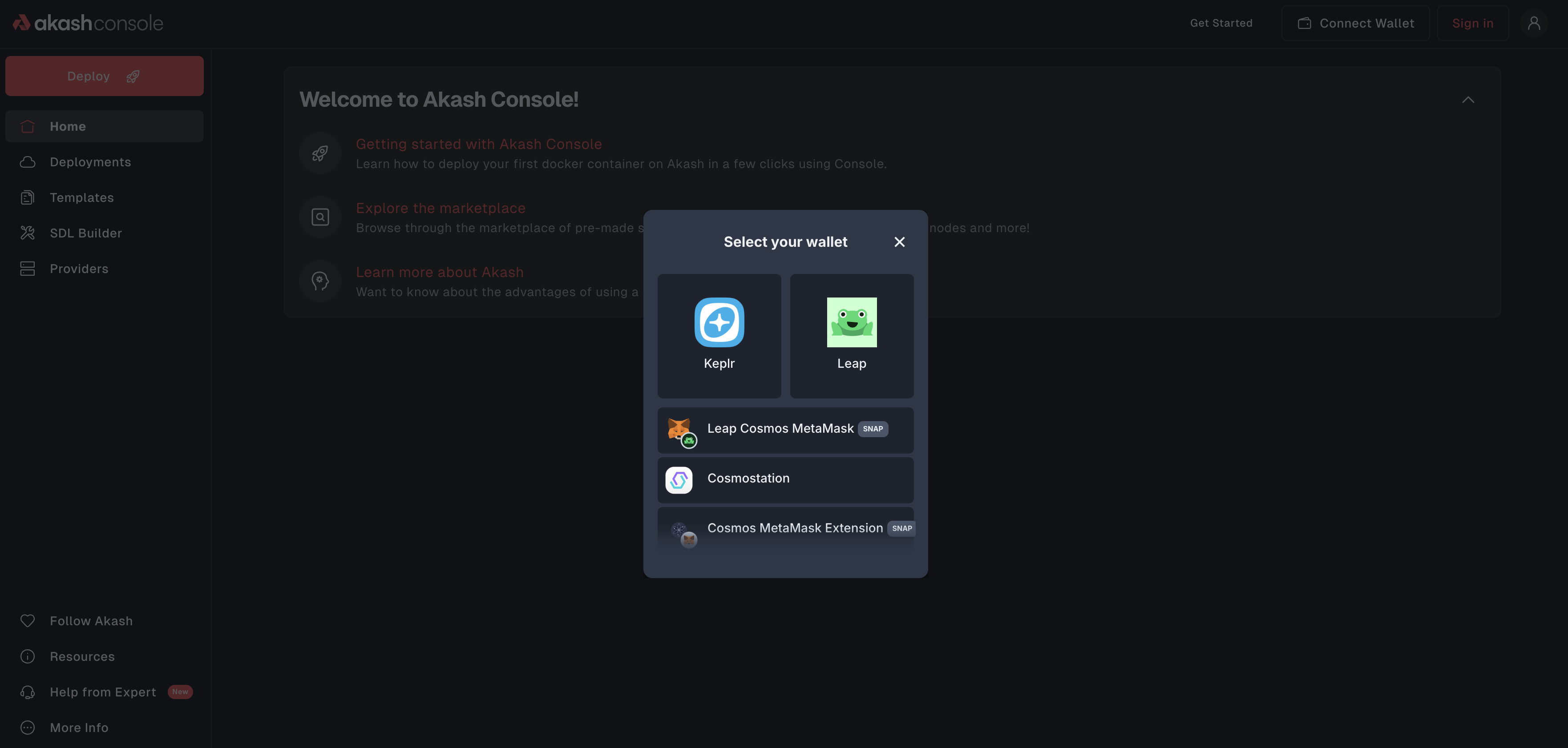 Select your Keplr wallet to connect (Console Air uses Cosmos Kit, so any compatible wallet works)
-
Approve the connection in your wallet extension — allow Console Air to:
- View your Akash address
- Request transaction approvals
- Query your balance
-
Your wallet address and AKT balance will appear in the top right.
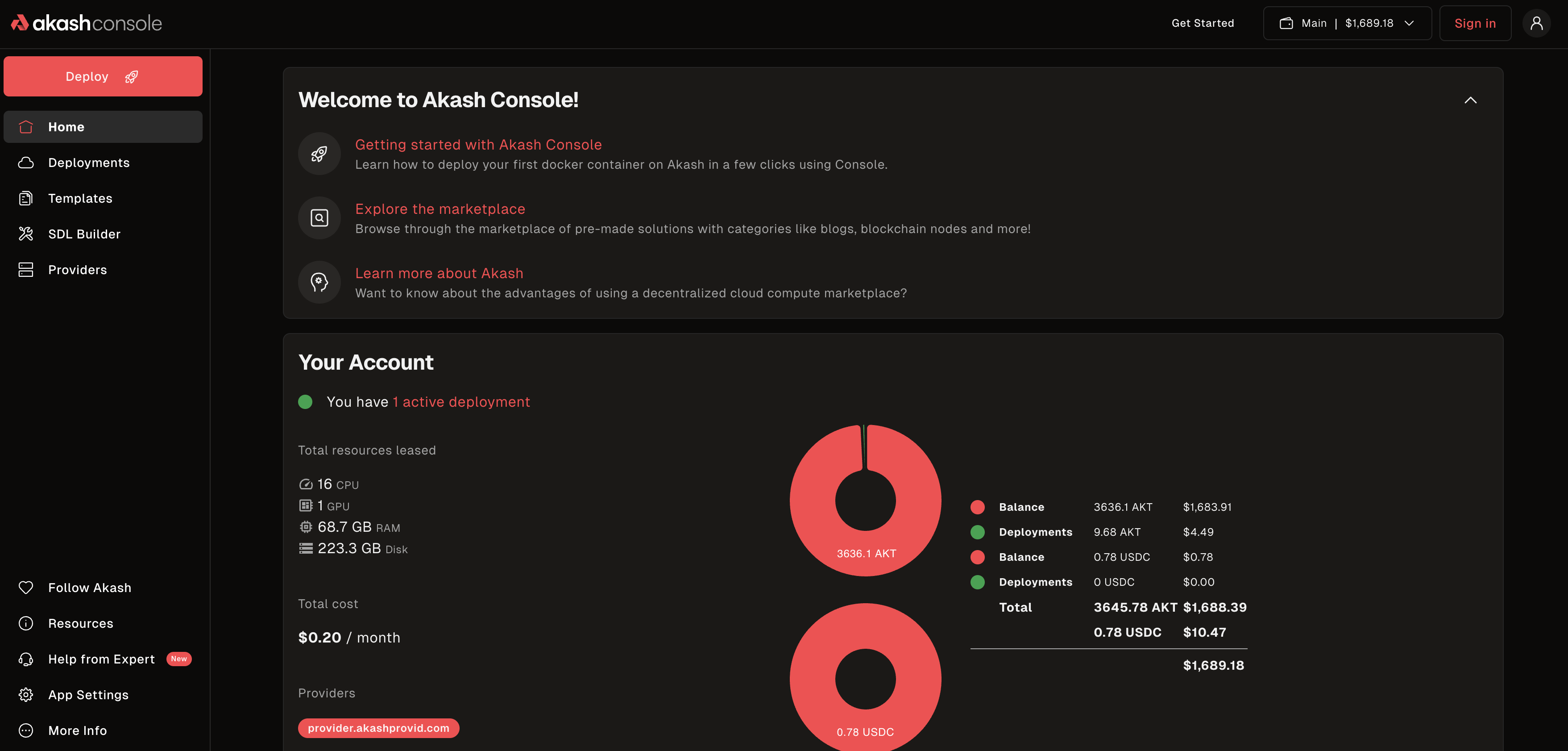 Successfully connected — your address and AKT balance are now visible
- Swap AKT for ACT
- Hover over your wallet in the top right and click Wallet Actions → Mint ACT
- Pick how many AKT you want to swap for ACT (minimum swap: 10 ACT)
- Leave some AKT for transaction gas
- Click Mint ACT and approve the transaction
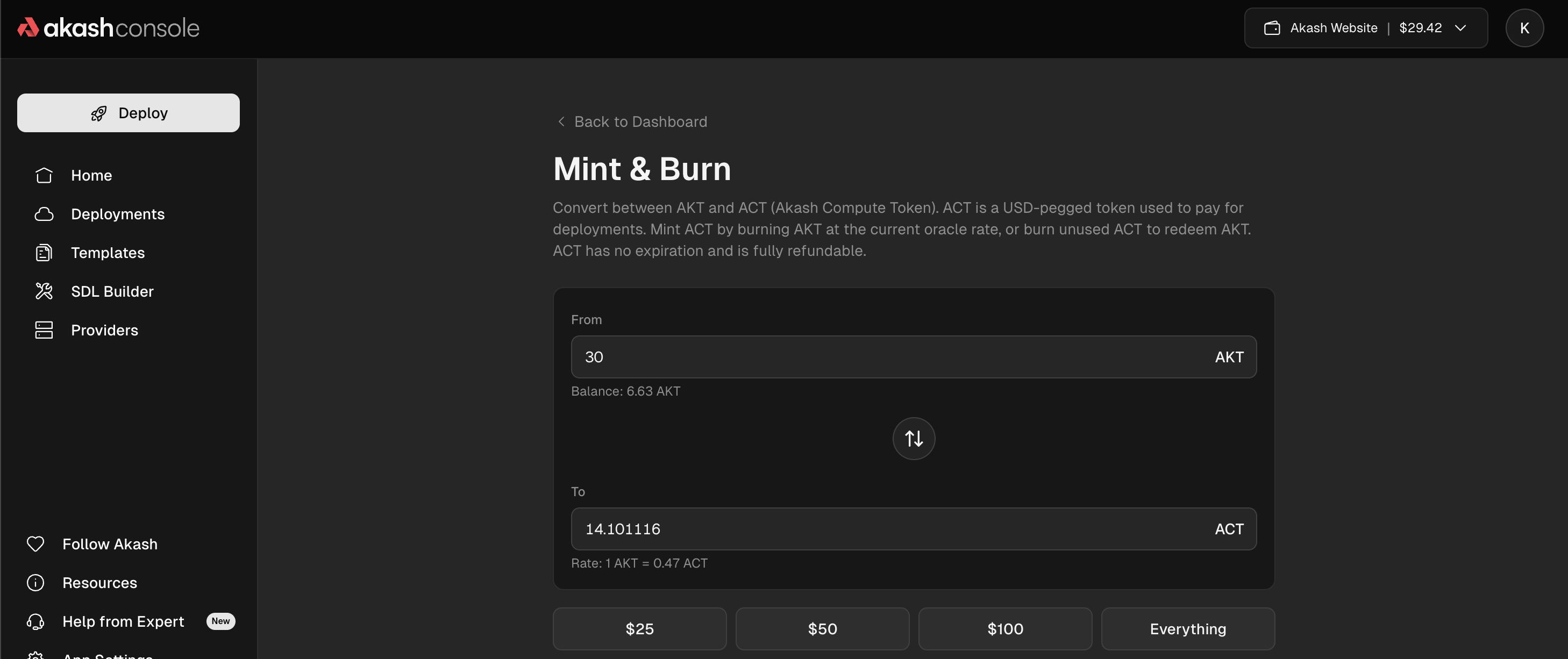 Mint ACT — your deployment escrow currency, minted from AKT
You’re now connected with both AKT (for gas) and ACT (for deposits).
Step 3: Understanding the Console Air Interface
After connecting, you’ll see:
Top Bar
- Your Address — shortened wallet address (e.g.,
akash1abc...xyz) - Balance — your available AKT and ACT
- Network Status — connection indicator
Sidebar Navigation
- Home — dashboard overview
- Deployments — your active and past deployments
- Templates — pre-built deployment templates
- SDL Builder — visual deployment editor
- Providers — browse available providers
Main Dashboard
- Active Deployments — running deployments and status
- Quick Actions — deploy button, settings
- Account Overview — balance, escrow (ACT), and spending
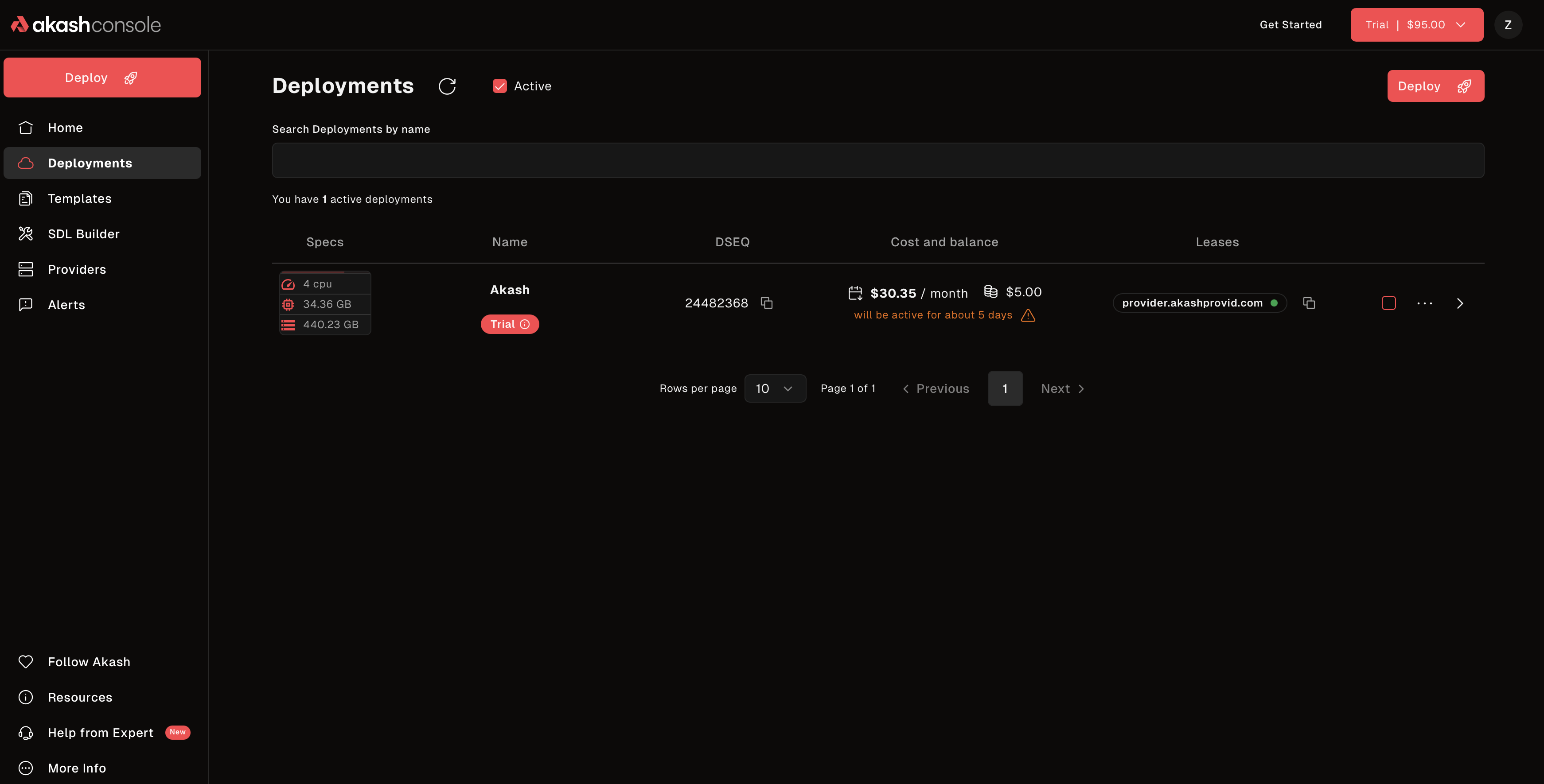 Your Console Air dashboard showing deployments and quick actions
Step 4: Deploy Your First Application
Option A: Use a Template (Recommended)
- Click “Templates” in the sidebar.
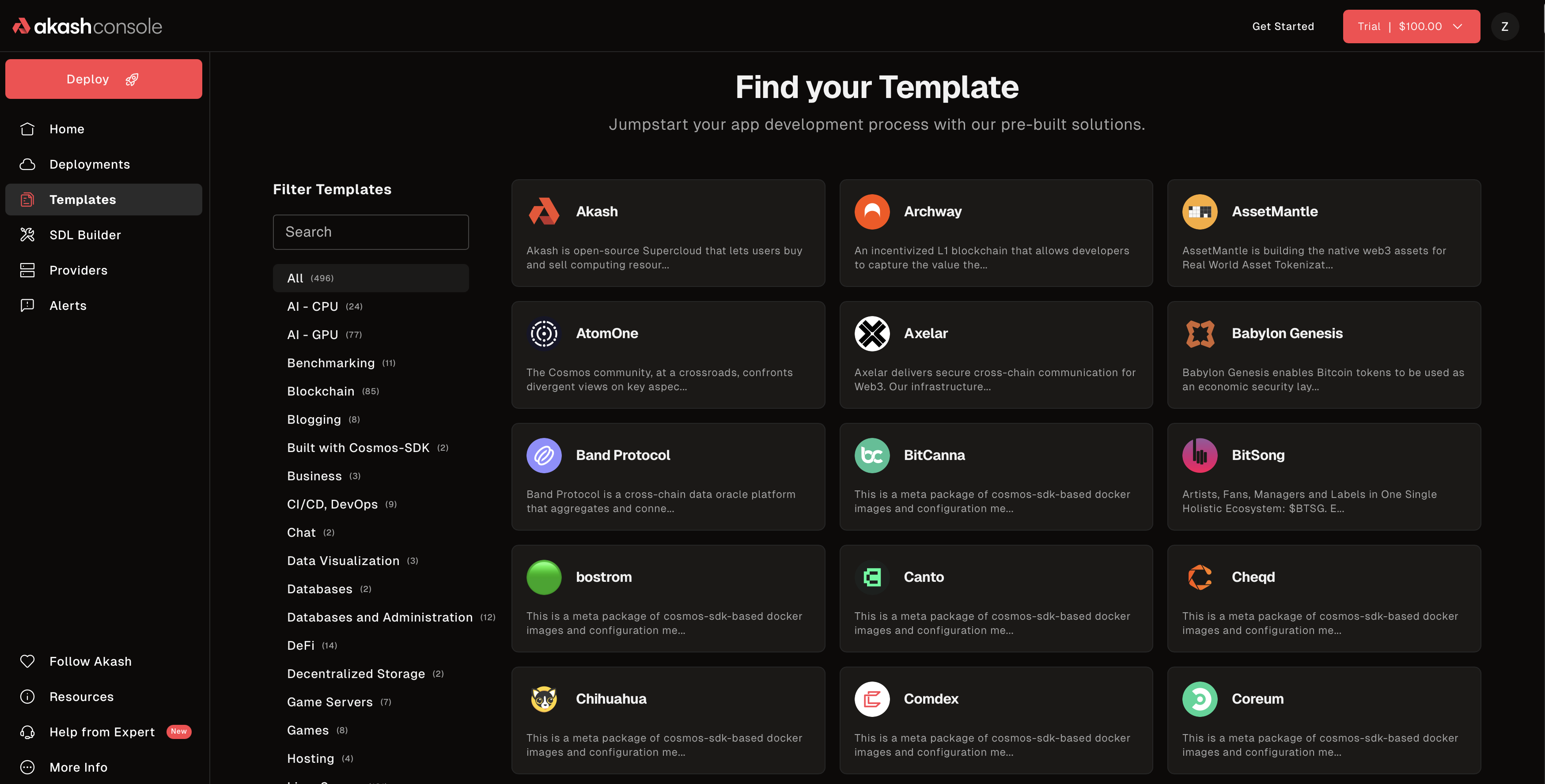 Browse pre-built templates for common applications
- Choose a template and click “Deploy”.
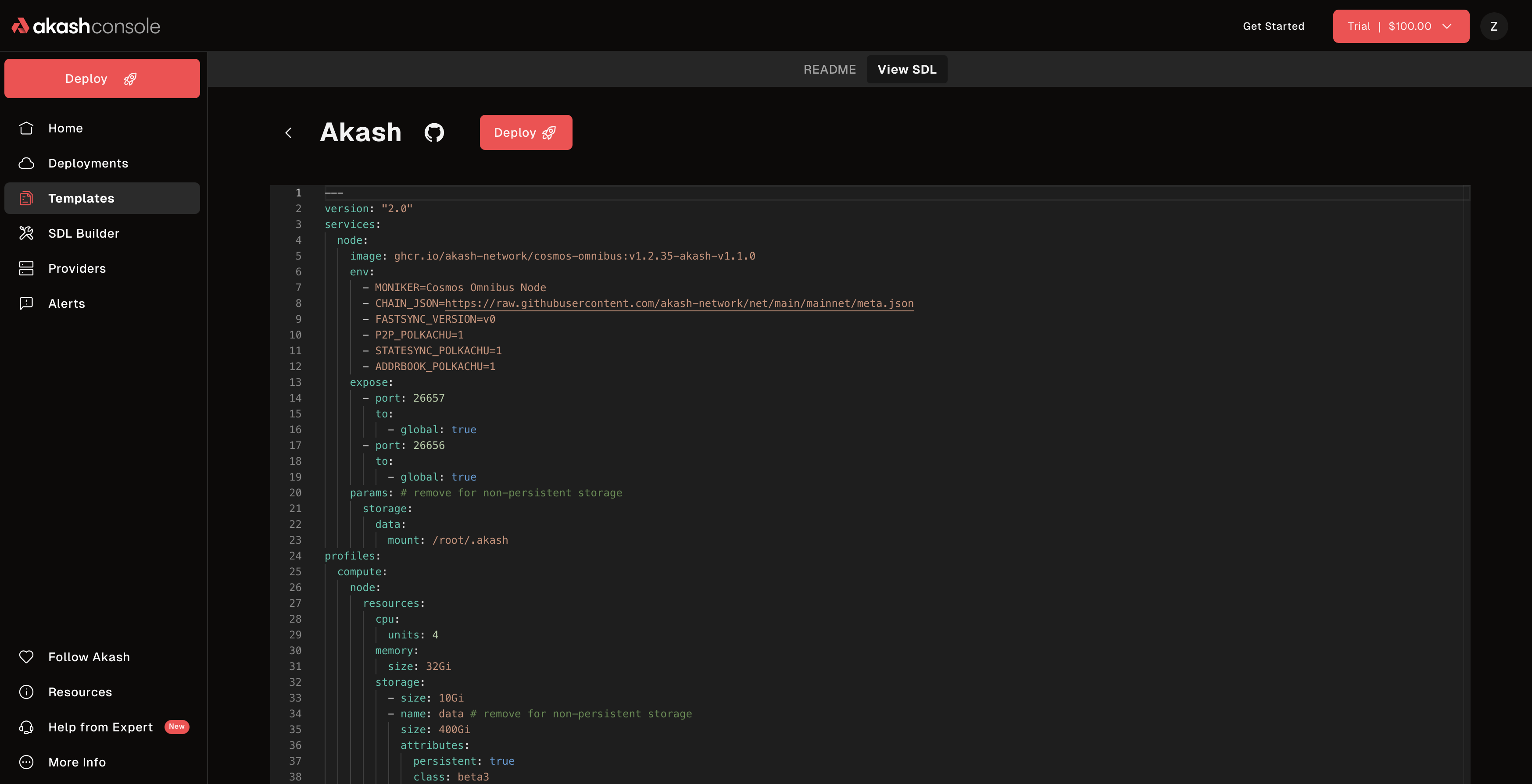 Review template details and deploy with one click
- Review the pre-filled SDL configuration.
- (Optional) Customize CPU, memory, storage.
- Click “Create Deployment”.
Option B: Custom Deployment
- Click the “Deploy” button.
- Choose “Empty Template” or “SDL Builder”.
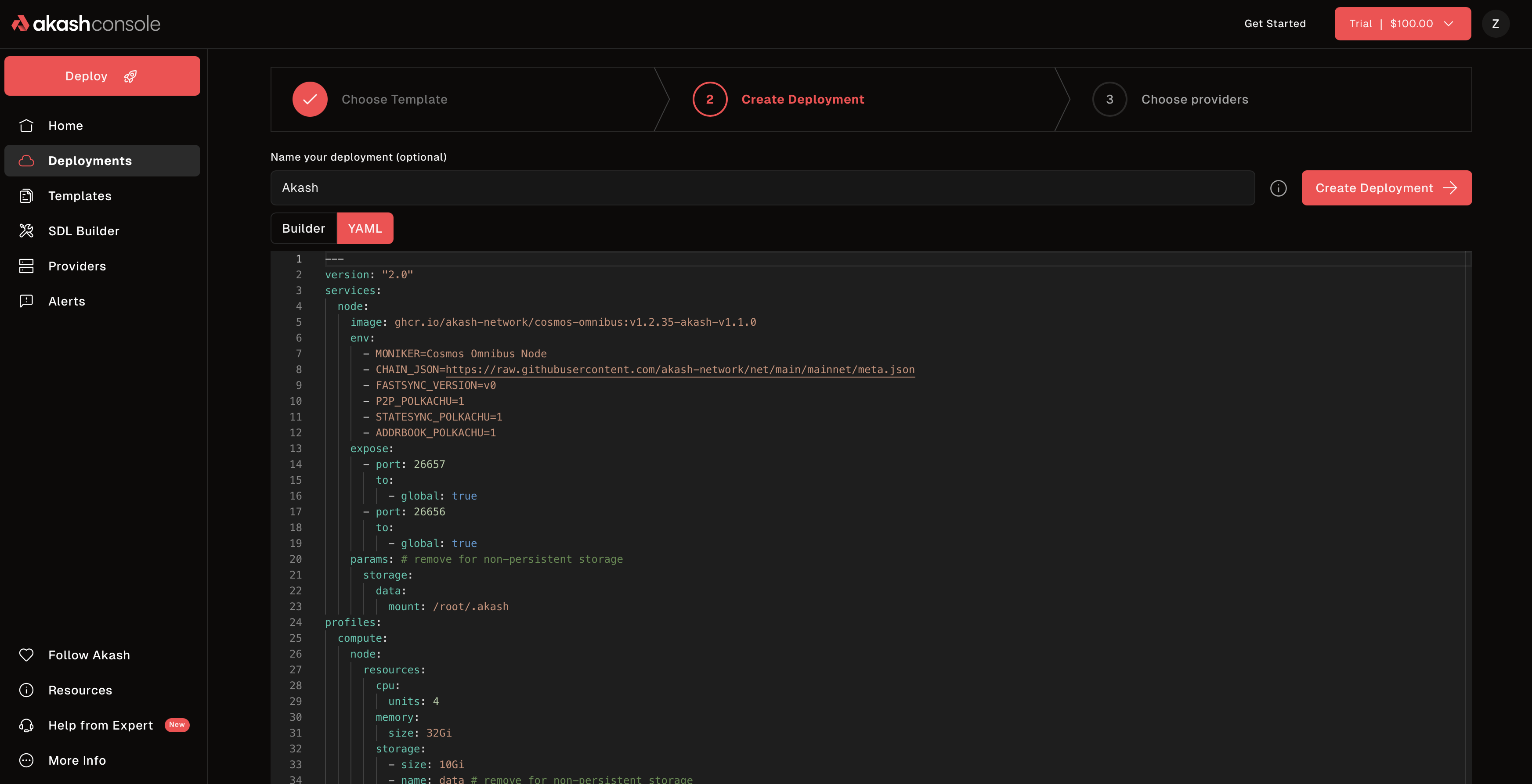 Build your deployment configuration using the SDL editor
- Write or build your SDL configuration.
- Click “Create Deployment”.
Step 5: Create the Deployment
After clicking “Create Deployment”:
- Set Deposit Amount
- Default is usually fine (in ACT, sized to your resources)
- Held in escrow — refunded when you close the deployment
- Use ACT unless the circuit breaker is in effect
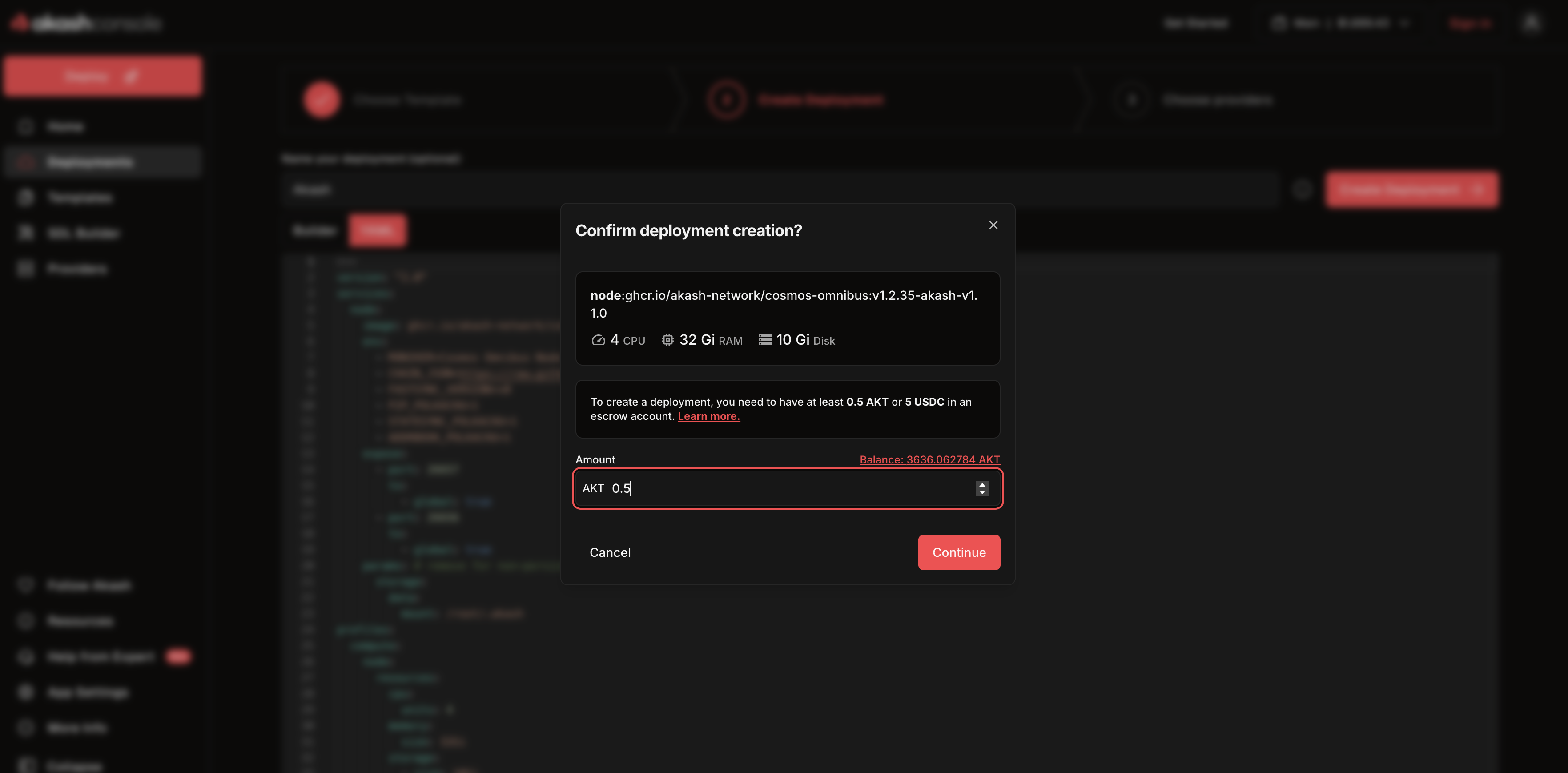 Set your deposit amount (ACT) — held in escrow and refunded on close
- Approve Transaction in Wallet
Your wallet (Keplr) will pop up requesting approval:
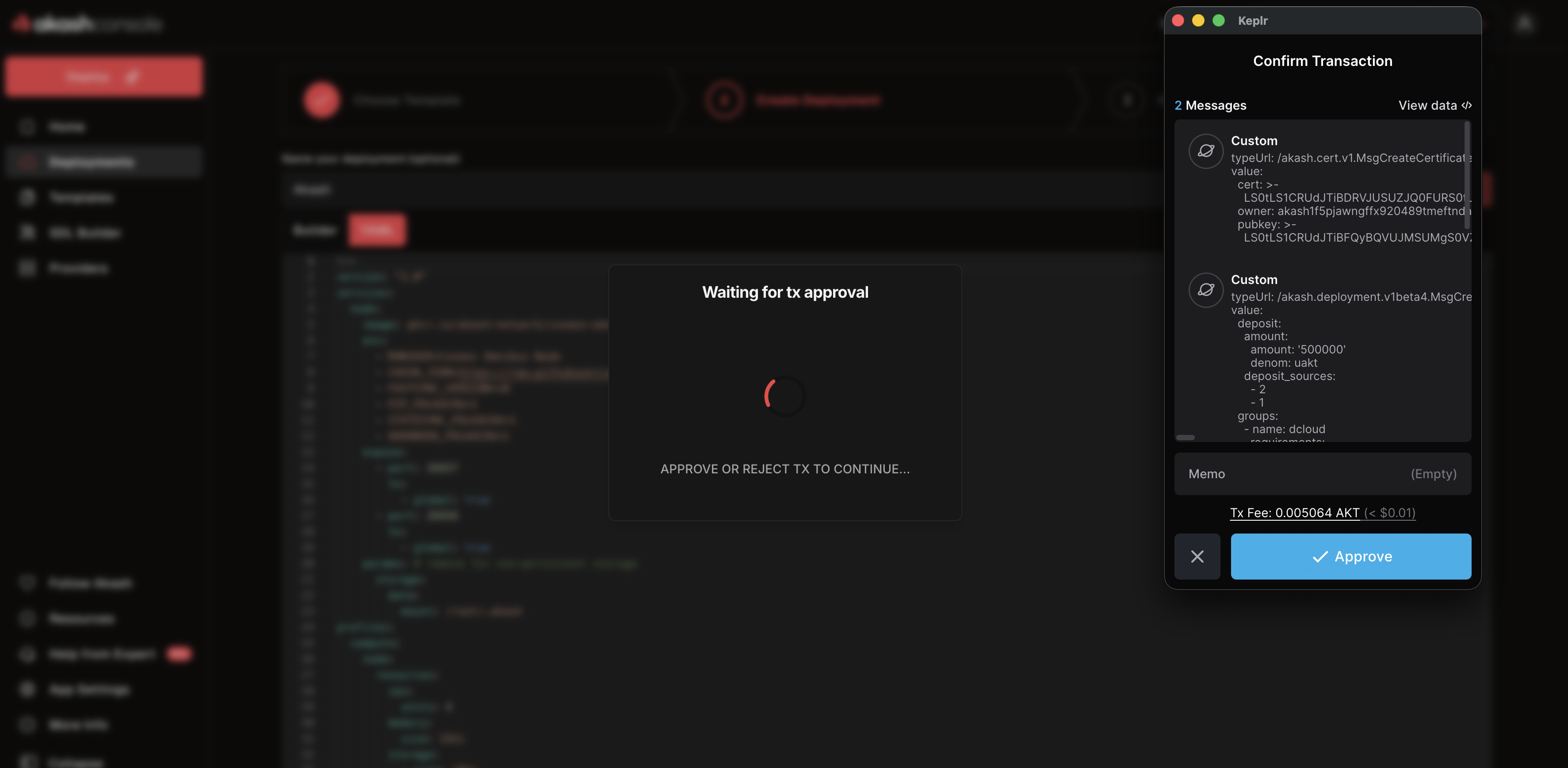 Approve the deployment creation transaction in your wallet
Review the transaction details:
- Deposit amount
- Gas fee (usually < 0.1 AKT)
- Total cost
Click “Approve”.
Wait ~30 seconds for blockchain confirmation.
Deployment created. Waiting for provider bids…
Step 6: Accept a Provider Bid
After creating your deployment, providers will bid to host it.
- View Bids — click “View Bids” (wait 30–60 seconds for providers to respond).
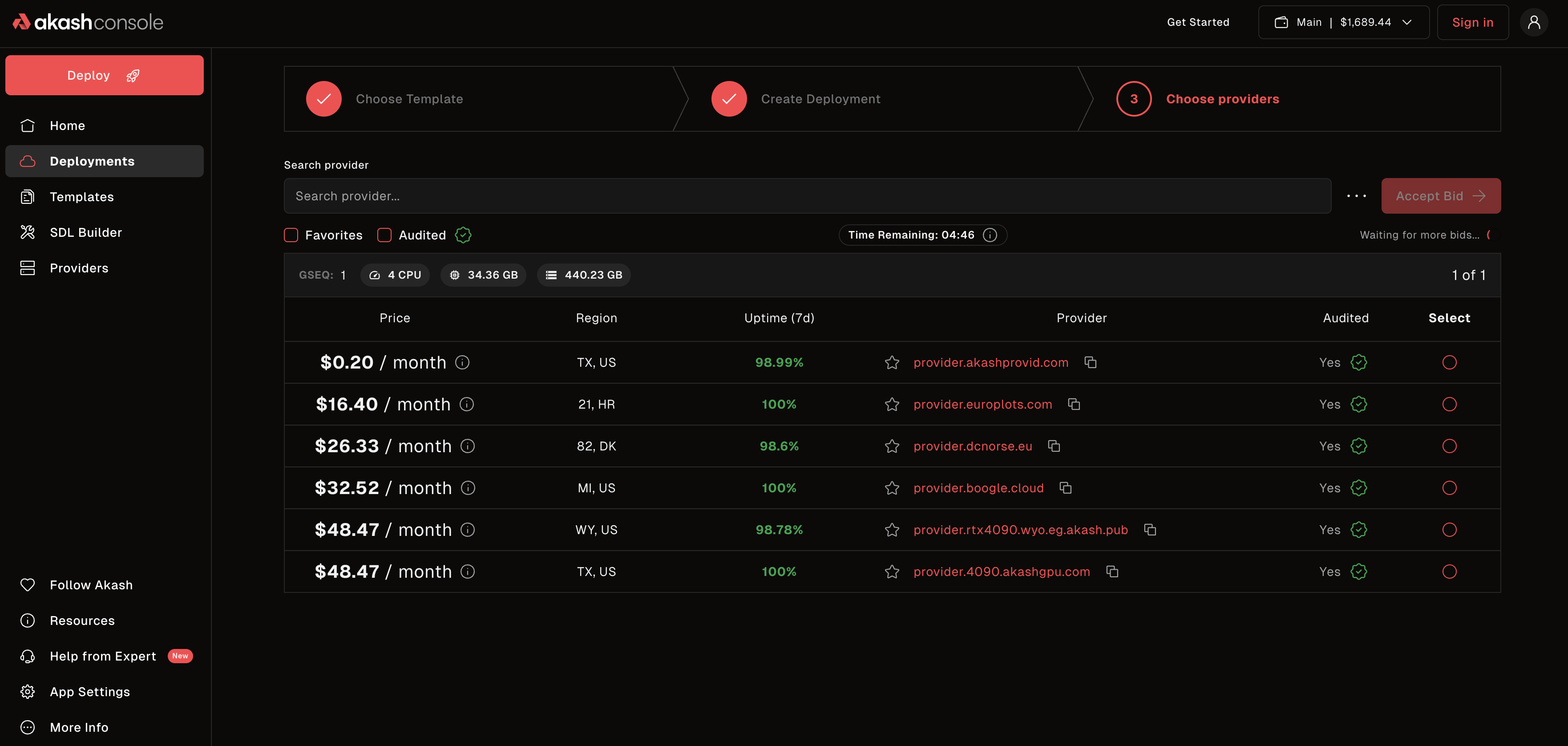 Review and compare provider bids — choose based on price, location, and attributes
-
Review Bids — you’ll see:
- Provider name and reputation
- Price per month
- Location and attributes
- Available resources
-
Select a Provider
- Sorted by price (lowest first)
- Check attributes and location
- For testing, lowest price is fine
-
Accept Bid
- Click “Accept” on your chosen provider
- Approve the lease transaction in your wallet
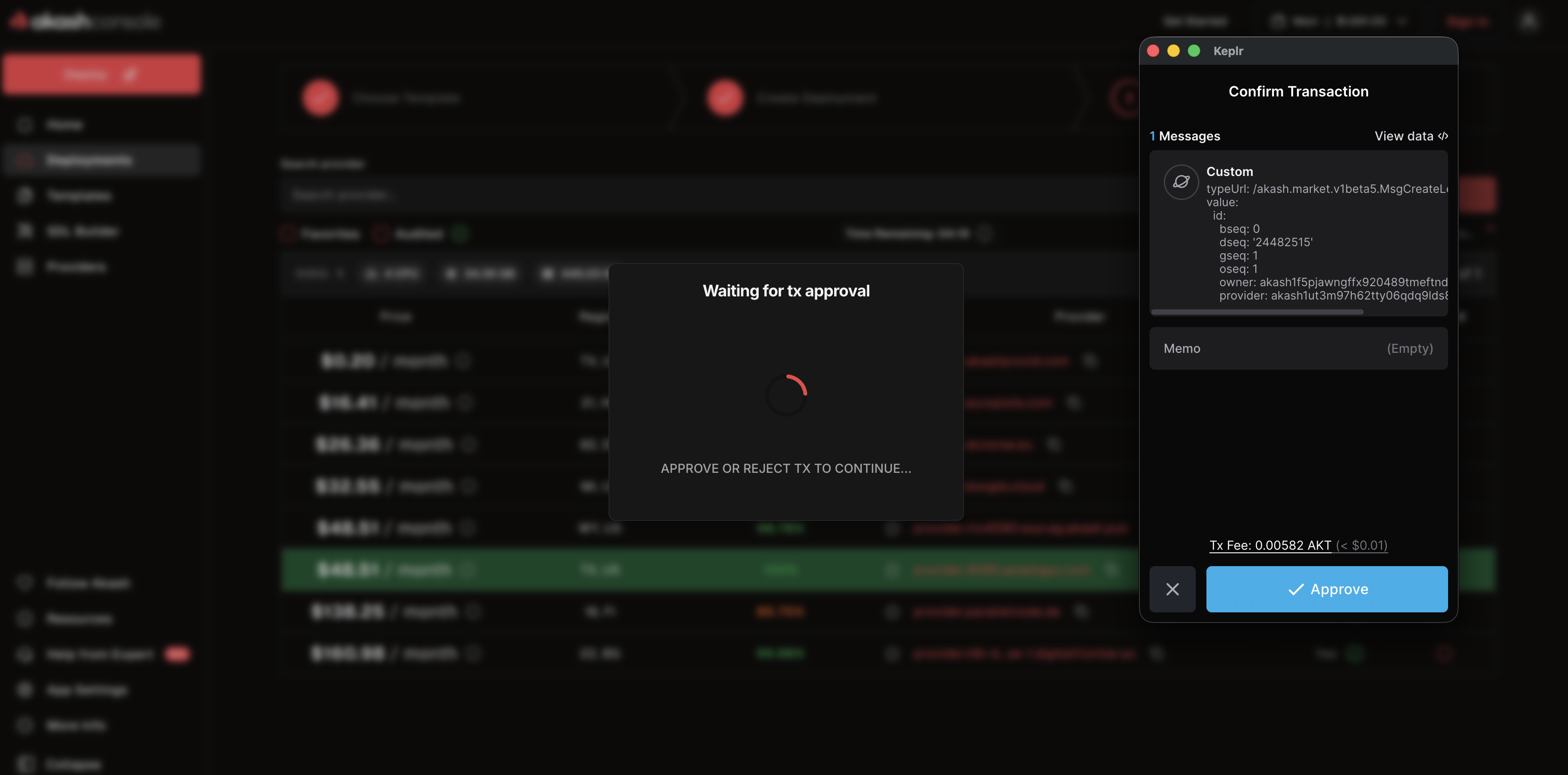 Approve the lease creation transaction to accept the provider’s bid
Wait ~20 seconds for lease creation and manifest delivery.
Step 7: Send Manifest
Once the lease is created, Console Air automatically sends your manifest to the provider (no wallet approval needed).
Wait 30–60 seconds for your container to start. Status will change:
- “Manifest Received”
- “Starting Services…”
- “Active”
Step 8: Access Your Deployment
Once status shows “Active” or “Running”:
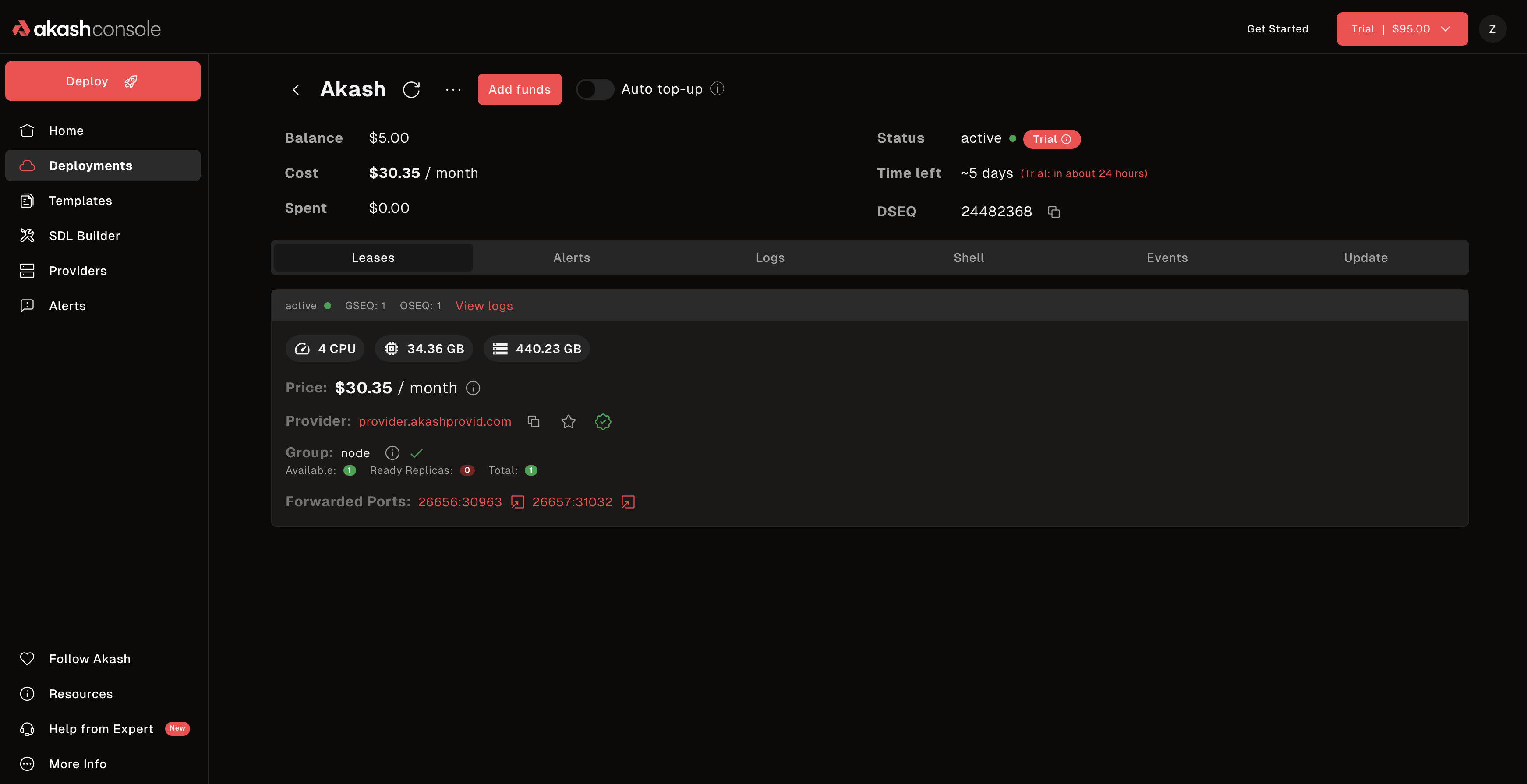 Your deployment is live with URLs and management controls
You’ll see:
- Live URLs — access your application
- Status — real-time deployment state
- Cost Tracking — current spending and escrow balance
- Management Controls — logs, update, close
Congratulations — your app is live on Akash, fully self-custody.
Managing Your Deployment
View Logs
Monitor your application’s output in real time:
- Click your deployment.
- Select the “Logs” tab.
- View real-time container logs.
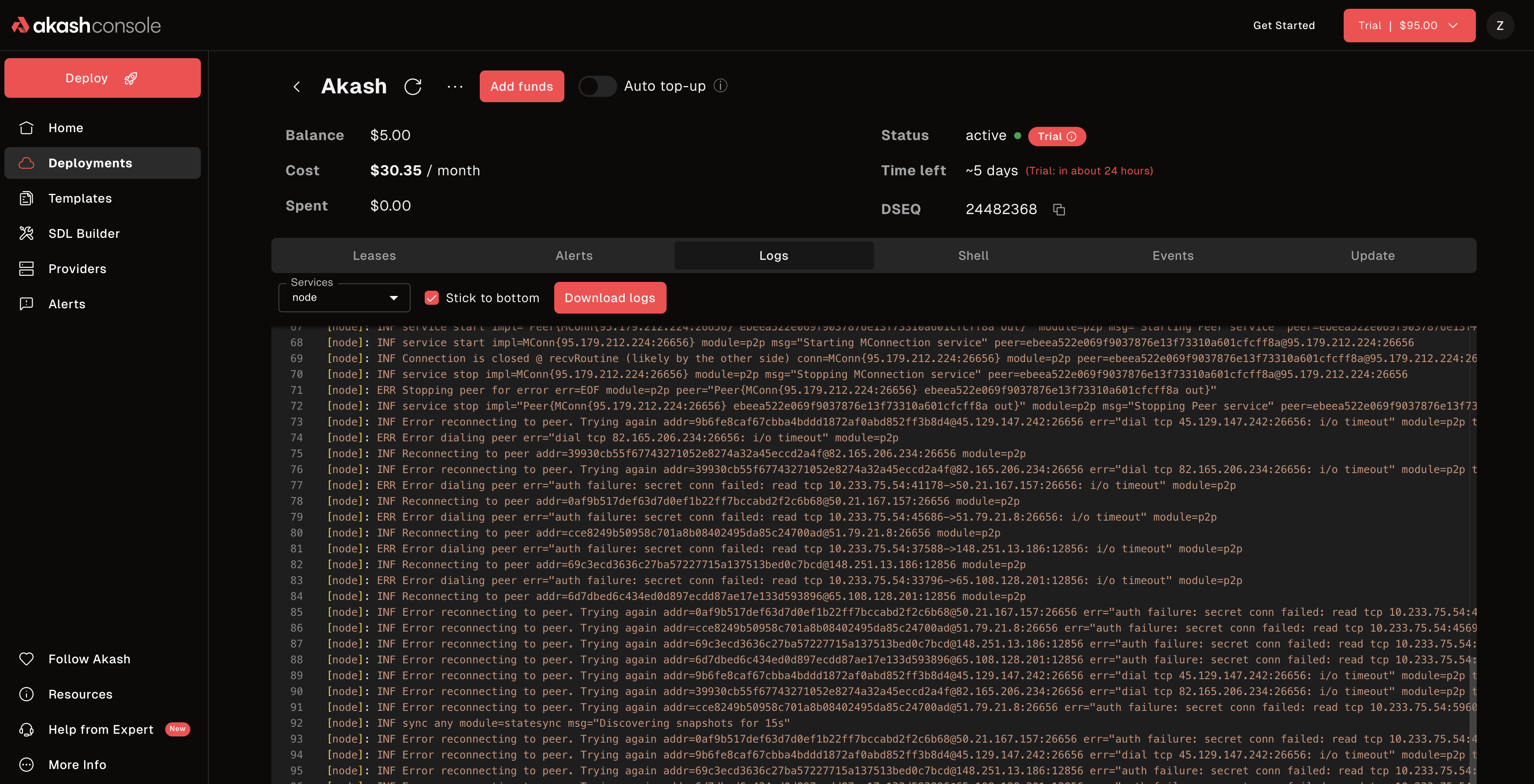 View real-time logs from your running containers
Monitor Events and Shell Access
Access deployment events and a shell terminal:
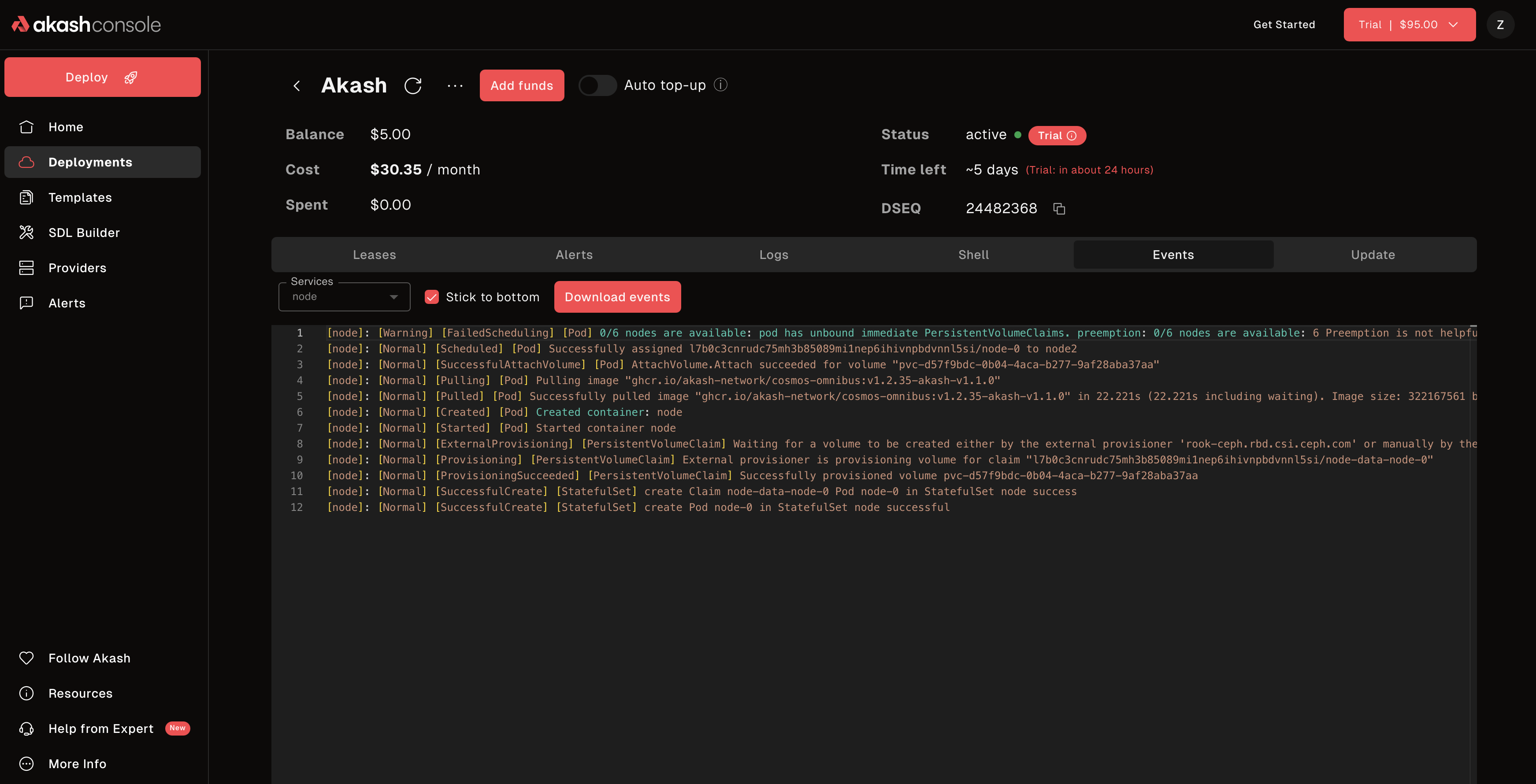 View deployment events and access shell terminal
Update Deployment
Modify your running deployment:
- Click your deployment.
- Click “Update Deployment”.
- Edit the SDL configuration.
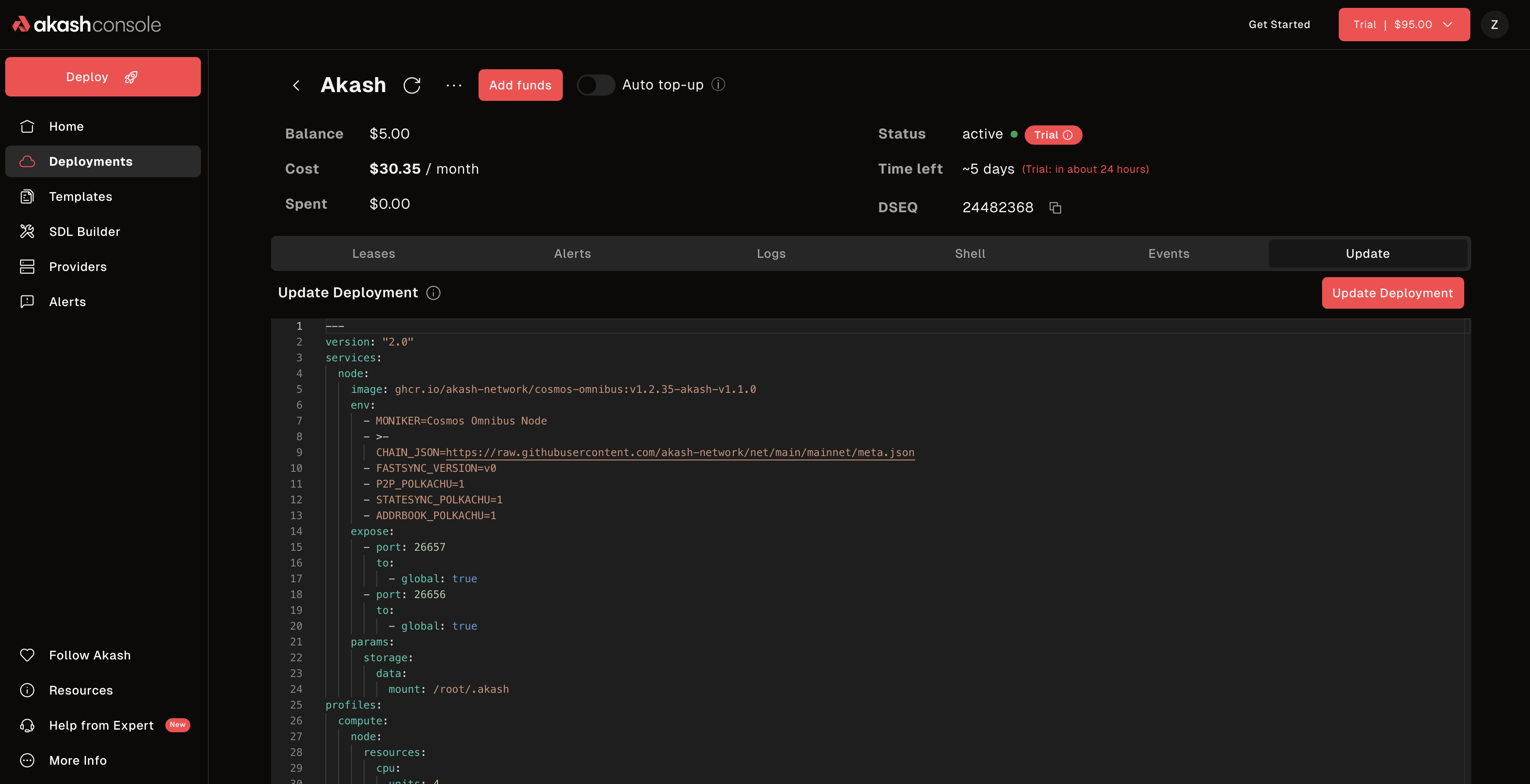 Update your deployment configuration on the fly
- Click “Update”.
- Approve the update transaction in your wallet.
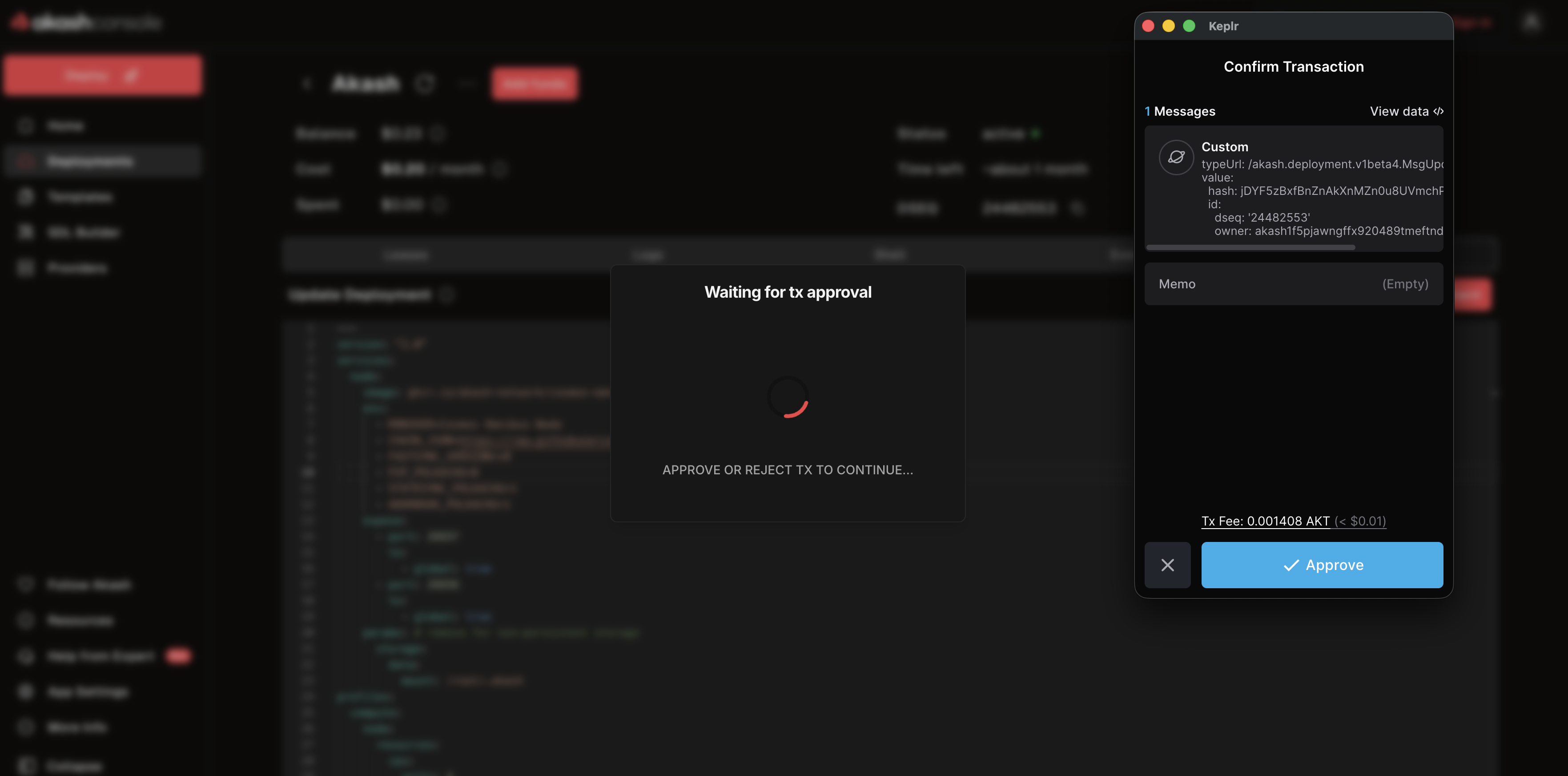 Approve the deployment update transaction in your wallet
Existing containers continue running until the new version is ready.
Close Deployment
Stop your deployment and reclaim your deposit:
- Open your deployment.
- Click “Close Deployment”.
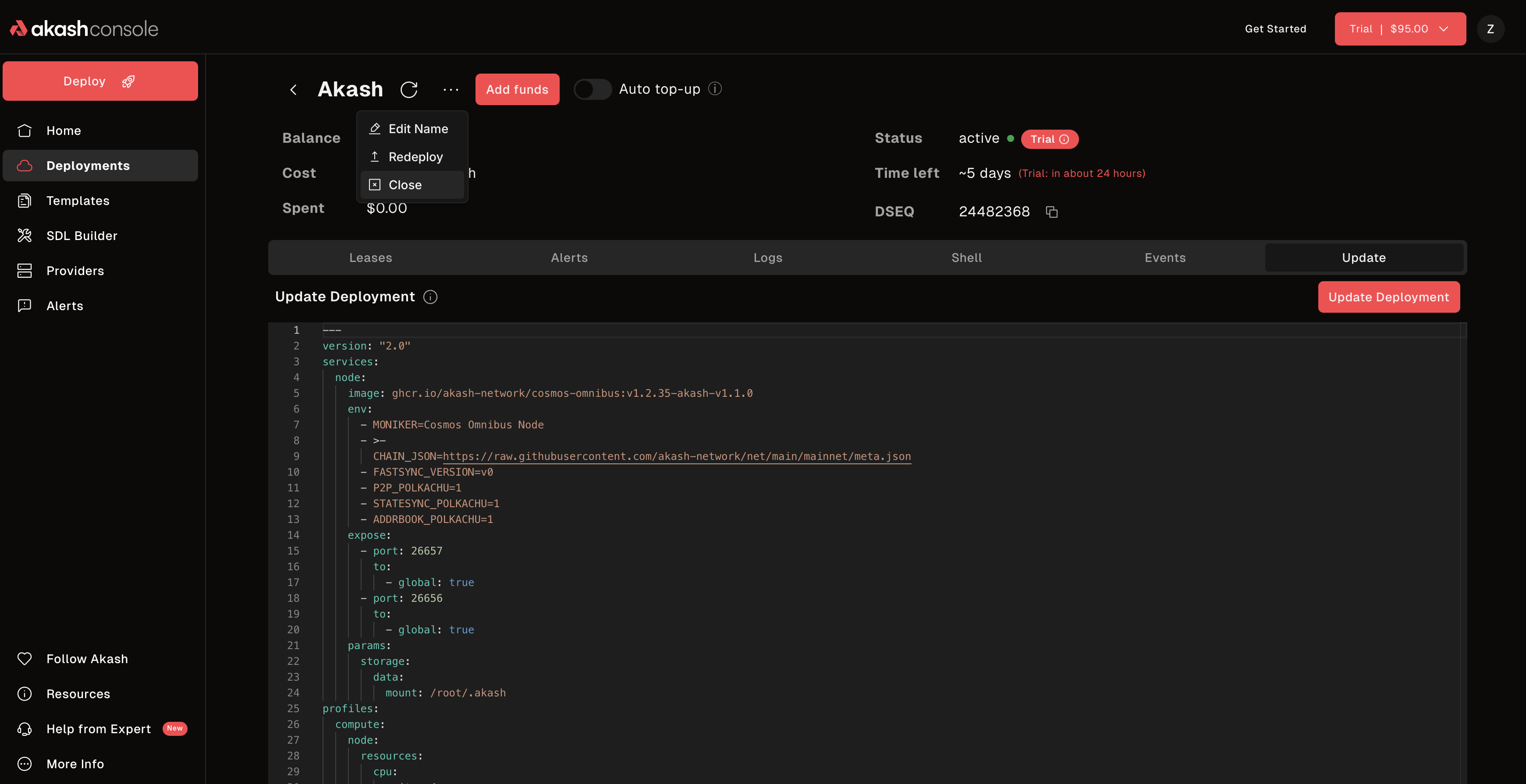 Confirm deployment closure — your deposit will be refunded
- Approve the close transaction in your wallet.
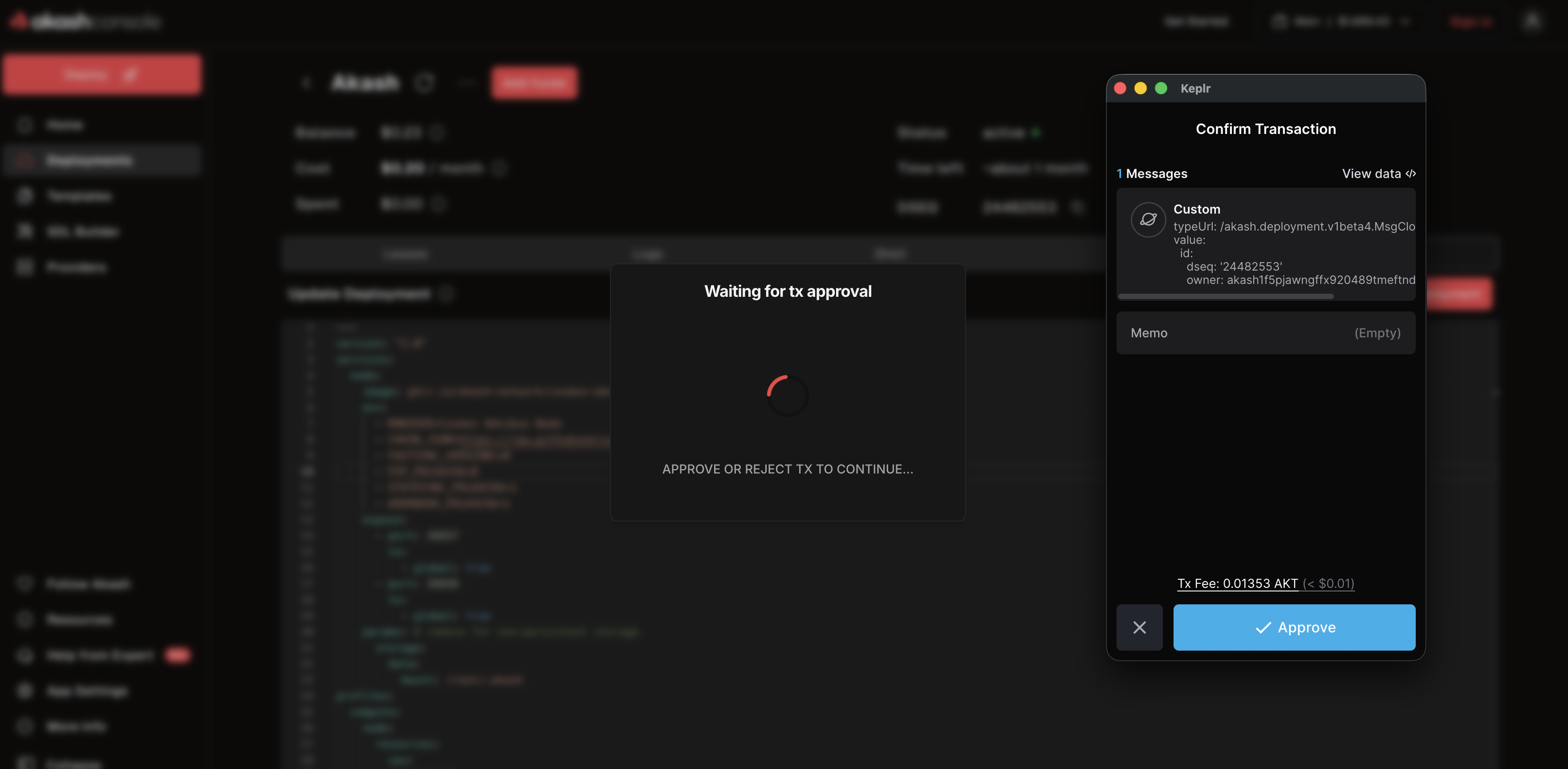 Approve the deployment close transaction in your wallet
- Your deposit is refunded to your wallet.
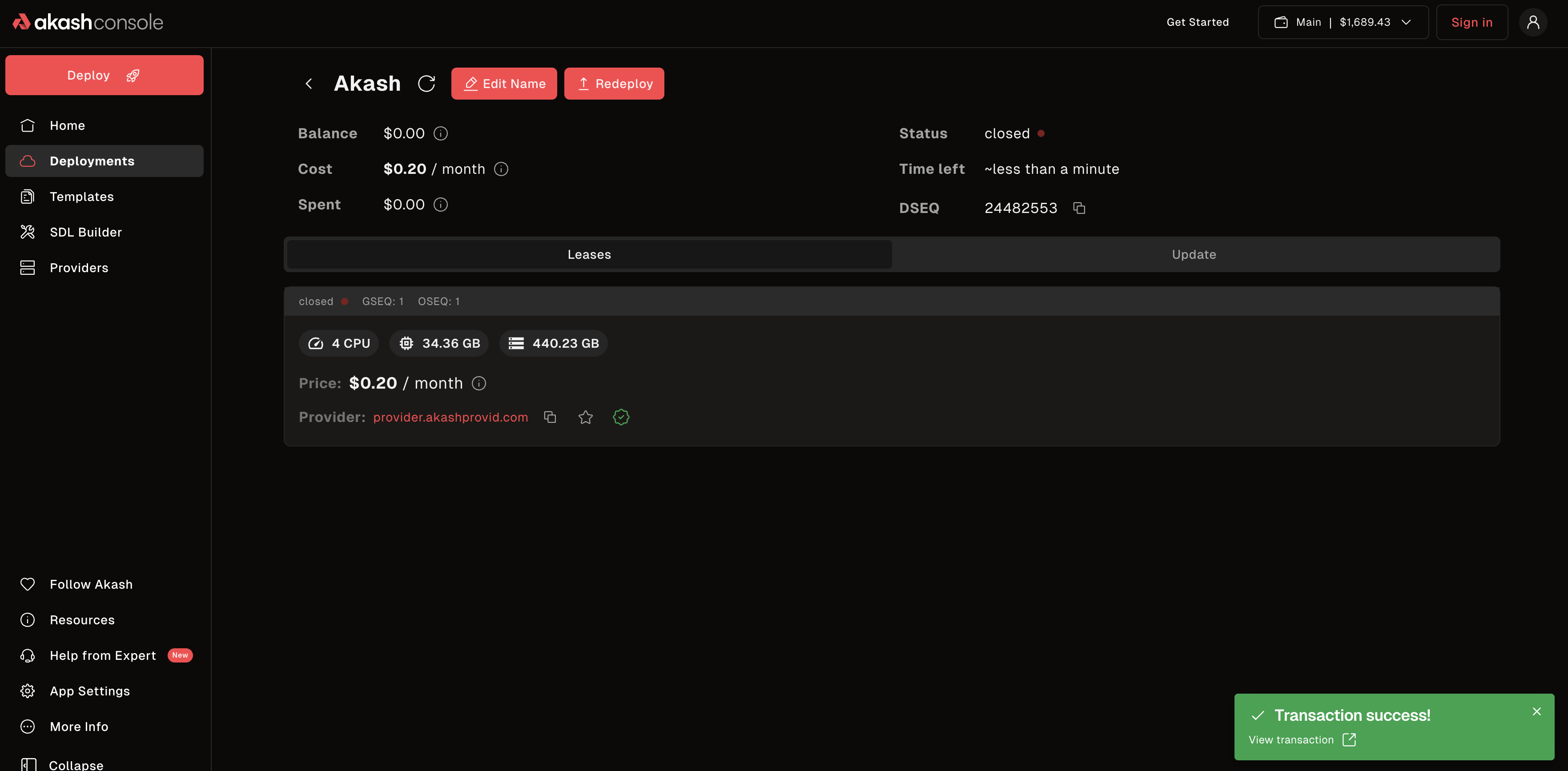 Deployment successfully closed — deposit refunded to your wallet
Always close deployments to get your deposit back.
Understanding Costs
What You Pay
-
Deposit (Escrow)
- Held while the deployment runs
- Fully refunded when you close
- Typical: deposit in ACT (e.g. ~5 ACT); gas in AKT
-
Provider Fees
- Paid per block from your deposit
- Varies by resources (CPU, RAM, storage, GPU)
- Typical: often under $5/month for basic web apps
-
Gas Fees
- Blockchain transaction fees
- Very small: ~0.02–0.1 AKT per transaction
- Paid when creating, updating, or closing deployments
Cost Example
Simple web app (0.5 CPU, 512 MB RAM, 512 MB storage):
- Deposit: in ACT (~$1–2 equivalent, refundable)
- Cost: often under $5/month (paid from ACT escrow)
- Gas: ~0.1 AKT total (network fees in AKT)
Your deposit (ACT) is held in escrow while the deployment runs and is fully refundable when you close. Use ACT unless the circuit breaker is in effect.
Common Questions
”How much AKT/ACT do I need?”
Fund your deployment in ACT (deposit is refundable). Keep some AKT for gas. Mint ACT by burning AKT from inside Console Air.
”What if I run out of ACT in escrow?”
Your deployment will close automatically. Monitor your escrow balance and add more ACT (click “Add Funds” on the deployment). When the circuit breaker is in effect, you can top up with AKT; otherwise use ACT only.
”My wallet isn’t connecting”
- Make sure the Keplr extension is installed
- Refresh the page
- Check that you’re on the Akash network in your wallet
- Disable other wallet extensions temporarily
”No bids received”
- Your max price might be too low — raise it in the SDL
- Wait 2–3 minutes (sometimes it takes time)
- Try off-peak hours
- Last resort: ask in Discord
#deploymentsfor a vanguard SDL review
”Deployment closed unexpectedly”
Possible causes:
- Ran out of ACT (or AKT during a circuit-breaker window) in escrow
- Provider went offline
- Deployment configuration error
Check: the Logs and Events tabs for error messages.
What’s Next?
Deploy Real Applications
- SDL Examples Library — 290+ deployment examples
- Web Applications — Nginx, WordPress, Ghost
- Databases — PostgreSQL, MongoDB, Redis
- AI/ML — Ollama, Stable Diffusion, ComfyUI
- GPU Workloads — LLMs, image generation, ML training
Learn More
- SDL Reference — master deployment configurations
- Core Concepts — understand how Akash works
- Console Air self-custody guide — wallet, signing, and certificate details
- Console Air self-hosting guide — deploy your own instance
Want Managed Instead?
- Akash Console — the managed alternative: credit-card billing, no wallet needed
Need Help?
- Discord: discord.akash.network —
#generalor#developers - Console Air issues: github.com/akash-network/console-air/issues
- Support: GitHub Support
Ready to deploy? Grab Console Air on GitHub →