Akash Migrate sends AKT from your Keplr wallet on Akash to a Solana wallet. This guide walks through one transfer and shows how to follow it. For how transfers work, see Akash Migrate.
Prerequisites
- Keplr with your Akash account: the browser extension, or the browser inside the Keplr mobile app.
- AKT for the amount you want to send, plus the Akash network fee.
- A Solana wallet address that you control. It doesn’t need any SOL.
Time Estimate: a few minutes
STEP 1: Connect Keplr
- Open the official portal once its public URL is announced. Until then, use the CLI transfer guide.
- Click Connect Keplr and approve the request in Keplr.
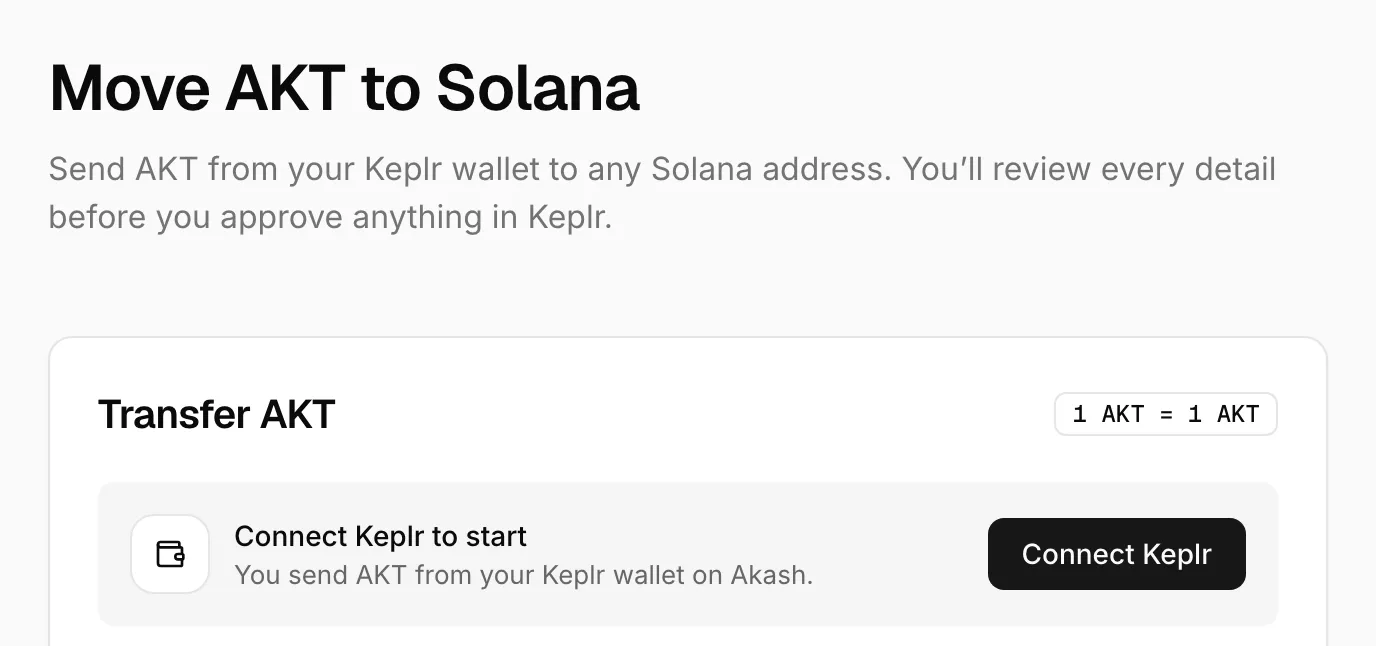
The page shows your Akash address and AKT balance.
Check Your Wallet Limits
Click the ⓘ button beside your Akash address in the transfer card. Its label is View wallet limits. The Wallet limits dialog shows:
| Field | Meaning |
|---|---|
| Per transfer | The minimum and maximum AKT allowed in one transfer. |
| This period | Your account’s deposit allowance for the quota period. |
| Remaining | How much of that allowance your account has left. |
The dialog also shows a reset countdown and the reset date and time in UTC. No account cap means there is no separate per-account allowance; per-transfer and global limits still apply.
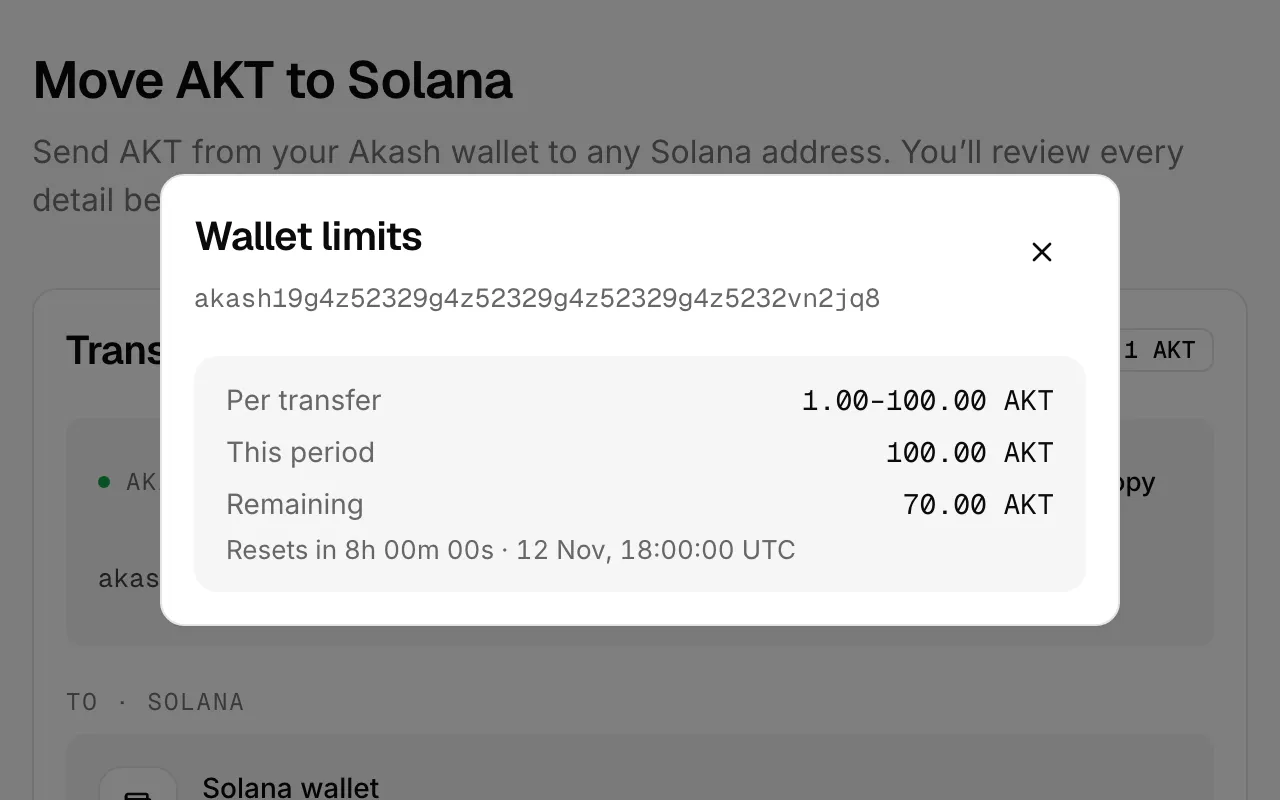
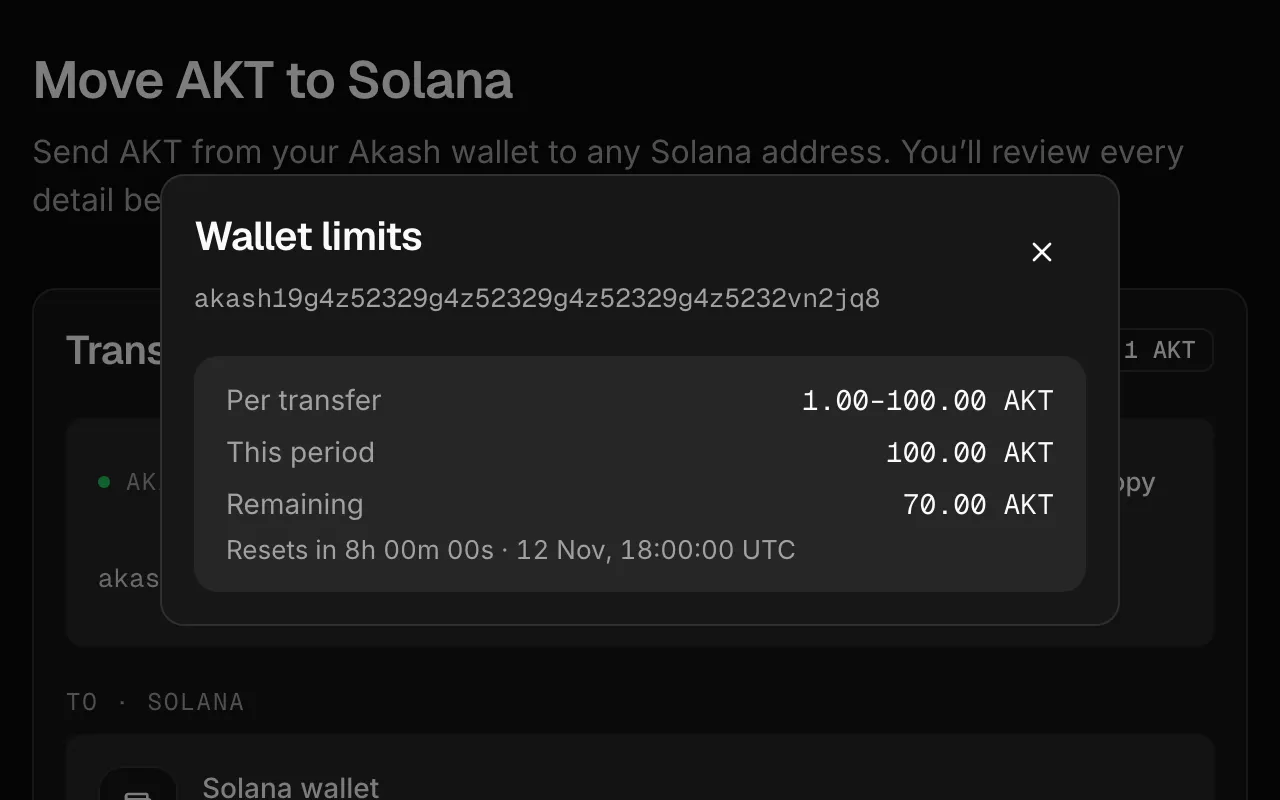
The cap and wallet-limit screenshots use example values. Check the portal for your account’s current limits.
You can open the dialog even after your account reaches its cap. Close it with × or Escape. If it shows Awaiting fresh quota or Live status unavailable, wait for a fresh update; those messages do not mean your allowance has reset.
STEP 2: Choose the Solana Address
Under To · Solana, either:
- click Connect Wallet and choose Phantom, Solflare or Backpack, or
- paste the address of any Solana wallet, for example a hardware wallet or a wallet on another device.
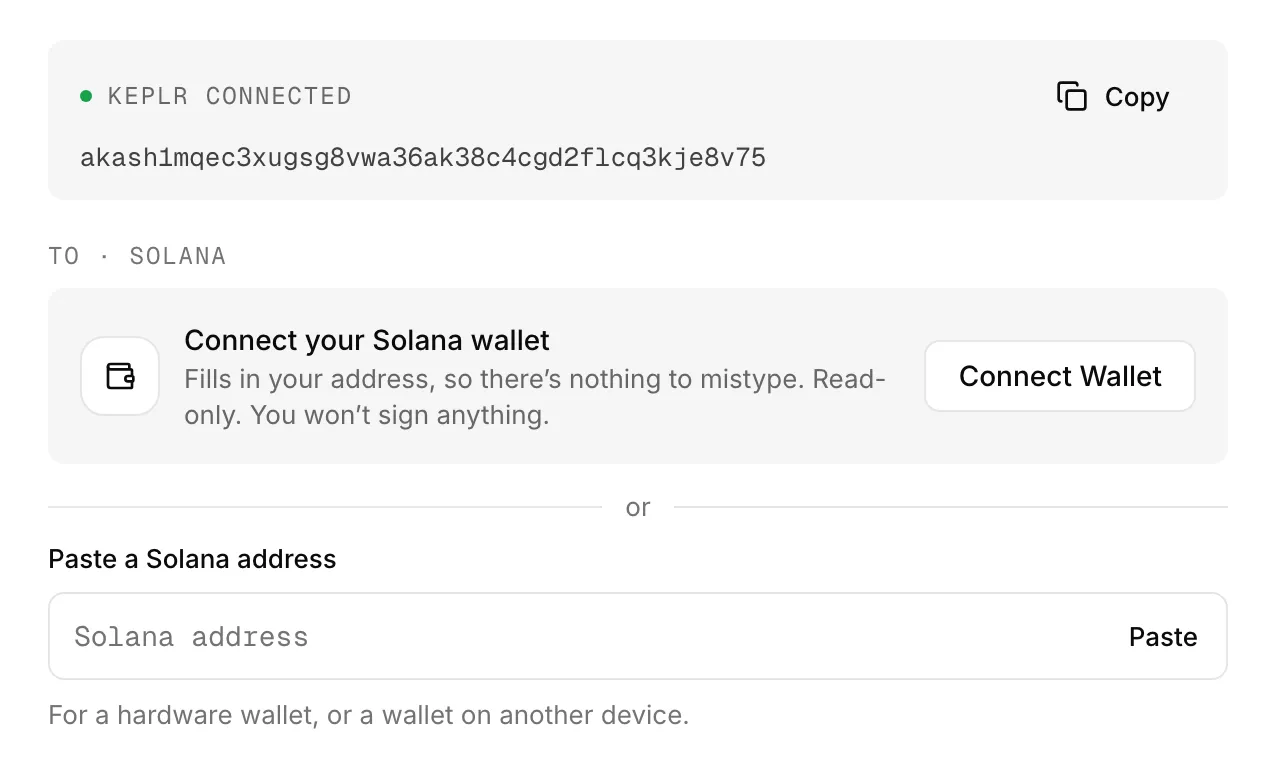
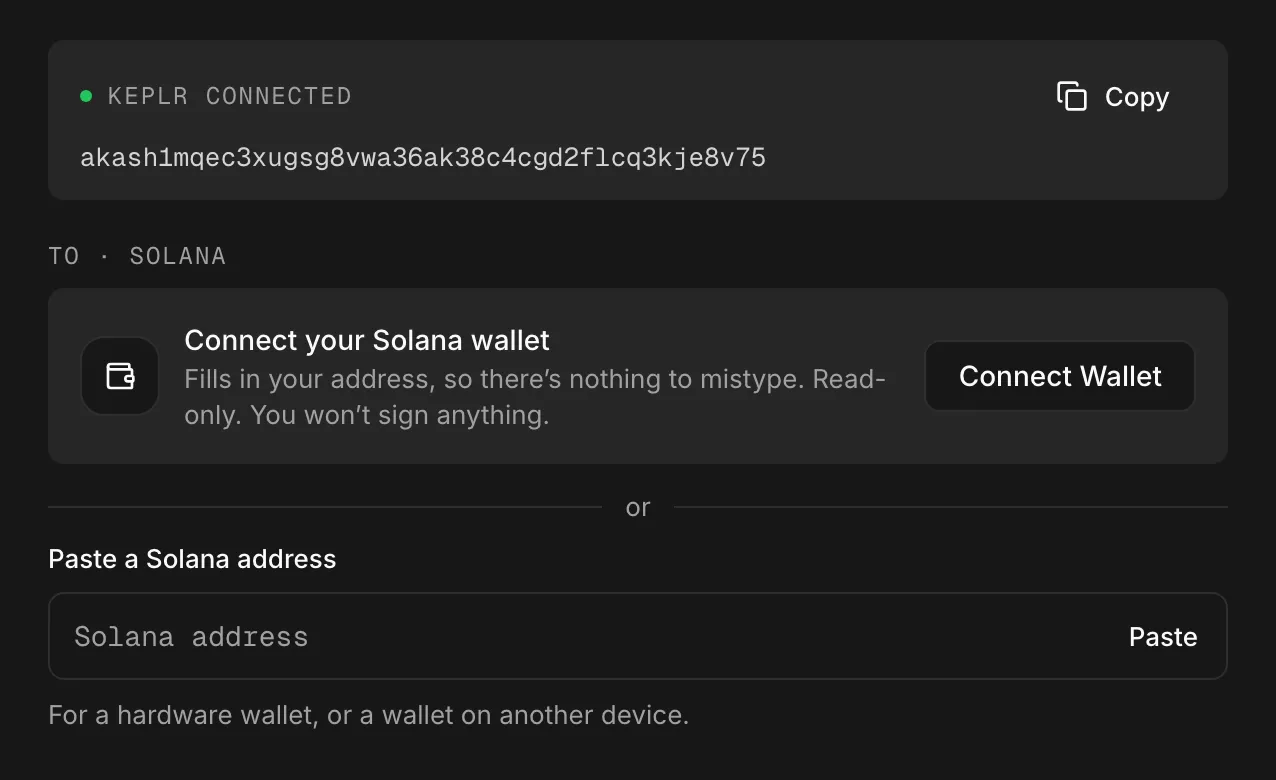
Connecting a Solana wallet only fills in its address. Your Solana wallet never signs anything.
The portal refuses text that isn’t a Solana address, and addresses that can’t belong to a wallet, such as associated token accounts.
STEP 3: Enter the Amount
Type the amount of AKT, or click Max to send your balance minus room for the network fee. The help text under the field shows the current minimum and maximum per transfer.
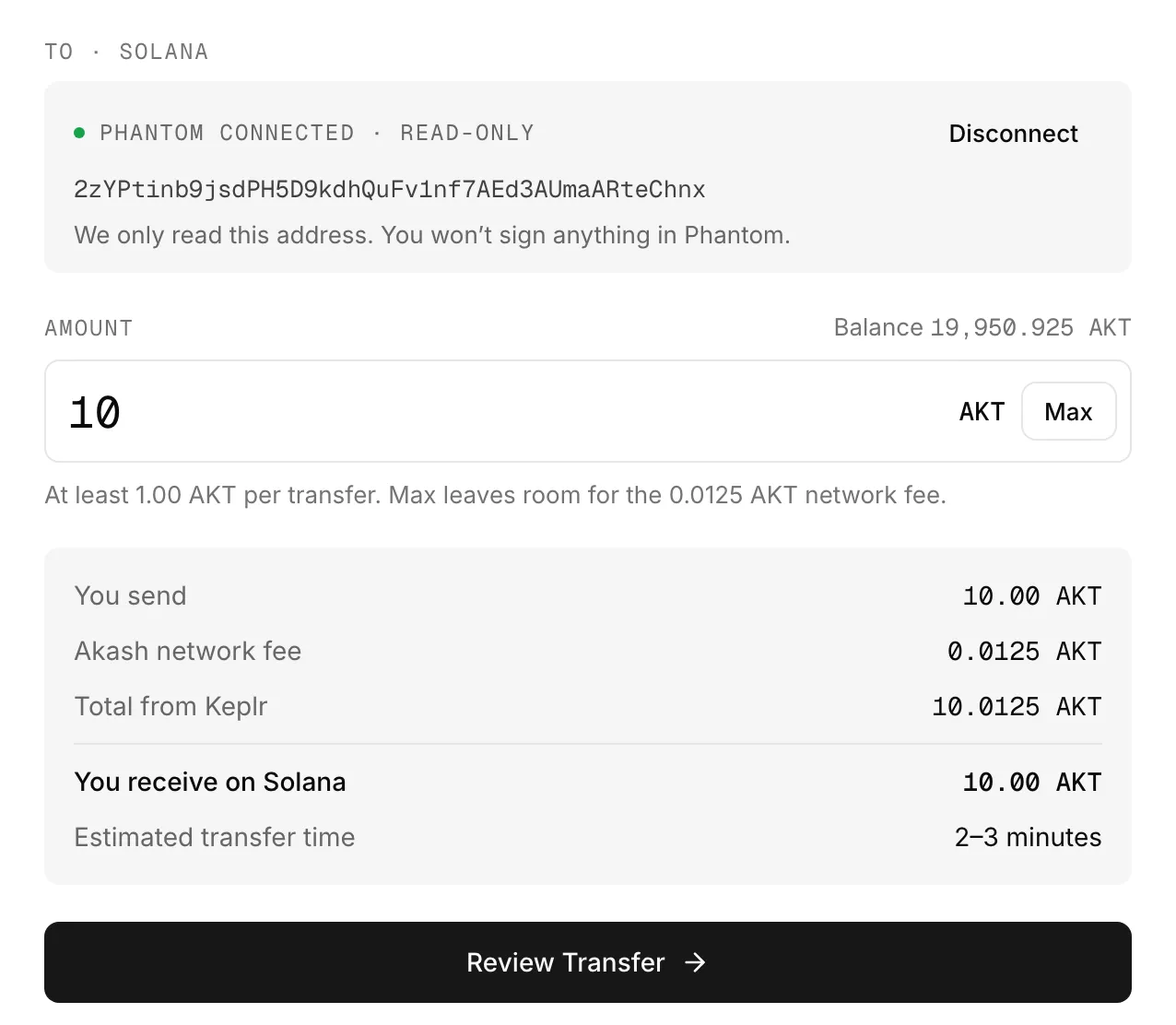
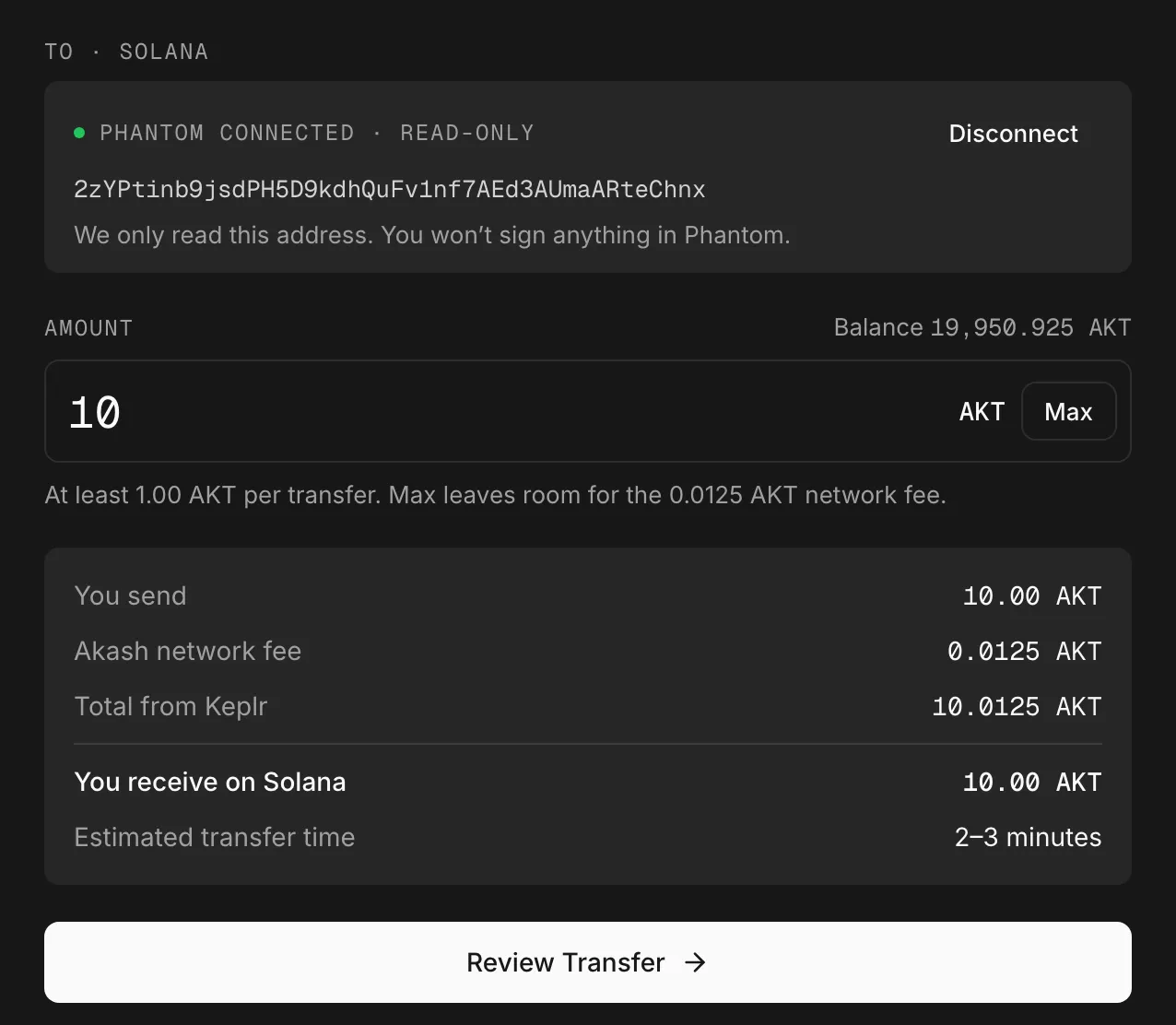
Use your browser’s decimal mark, for example 2.5 in English or 2,5 in German, with at most six decimal places.
If you enter more than your balance, the portal offers Send the max instead.
When a Cap Is Reached
Warnings above the transfer card identify which global cap has been reached. They appear even before you connect a wallet.
- Akash deposit cap reached: wait for the next Akash quota period. New deposits are disabled while the shared deposit allowance is exhausted.
- Solana mint cap reached: expect delivery to wait for the next Solana mint reset. This warning alone does not disable new deposits on Akash.
Each warning has its own reset countdown and UTC time. Both warnings can appear together:
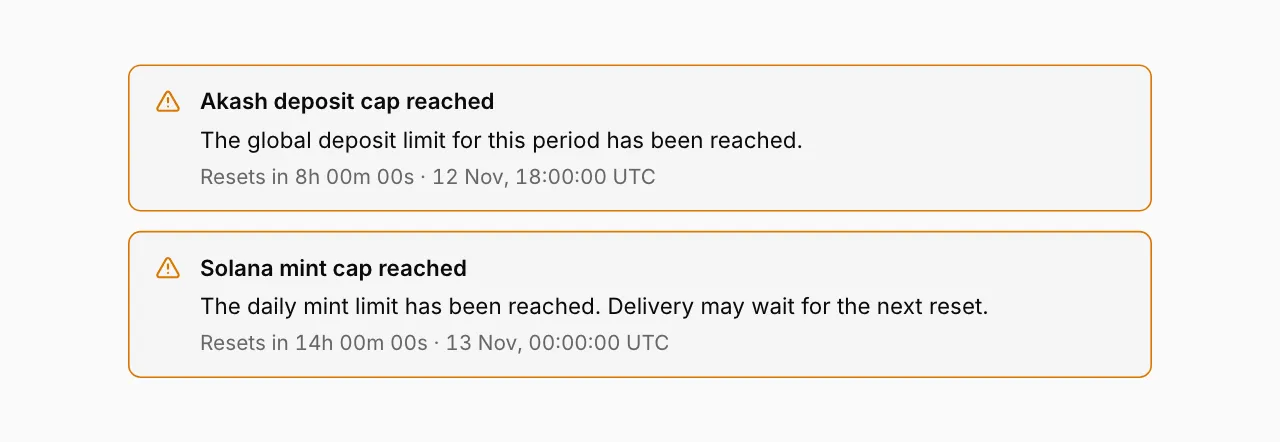
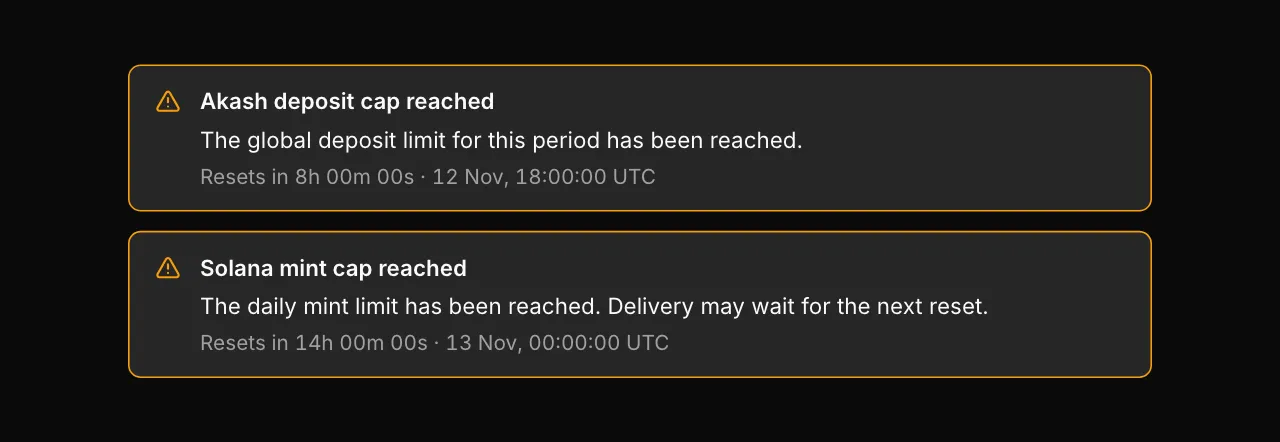
When the global Akash deposit cap or your account’s cap is exhausted, the portal disables the destination, amount, Max and Review Transfer controls. You can still connect your Akash wallet and open Wallet limits. The form becomes available once a fresh update confirms available capacity; a countdown reaching zero alone does not unlock it.
A warning marked last observed reports the last known state because the portal cannot confirm current quota data. Wait for a current update. If you already sent a deposit, keep tracking that transfer rather than sending it again.
STEP 4: Review and Confirm
- Click Review Transfer.
- Check each detail in Confirm one-way transfer:
- the Solana address, shown in groups of four characters
- the Akash account sending the AKT
- the amount, the network fee and the total
- Tick I checked this is my Solana address and I understand this transfer is one way.
- Click Confirm in Keplr, then approve the transaction in Keplr.
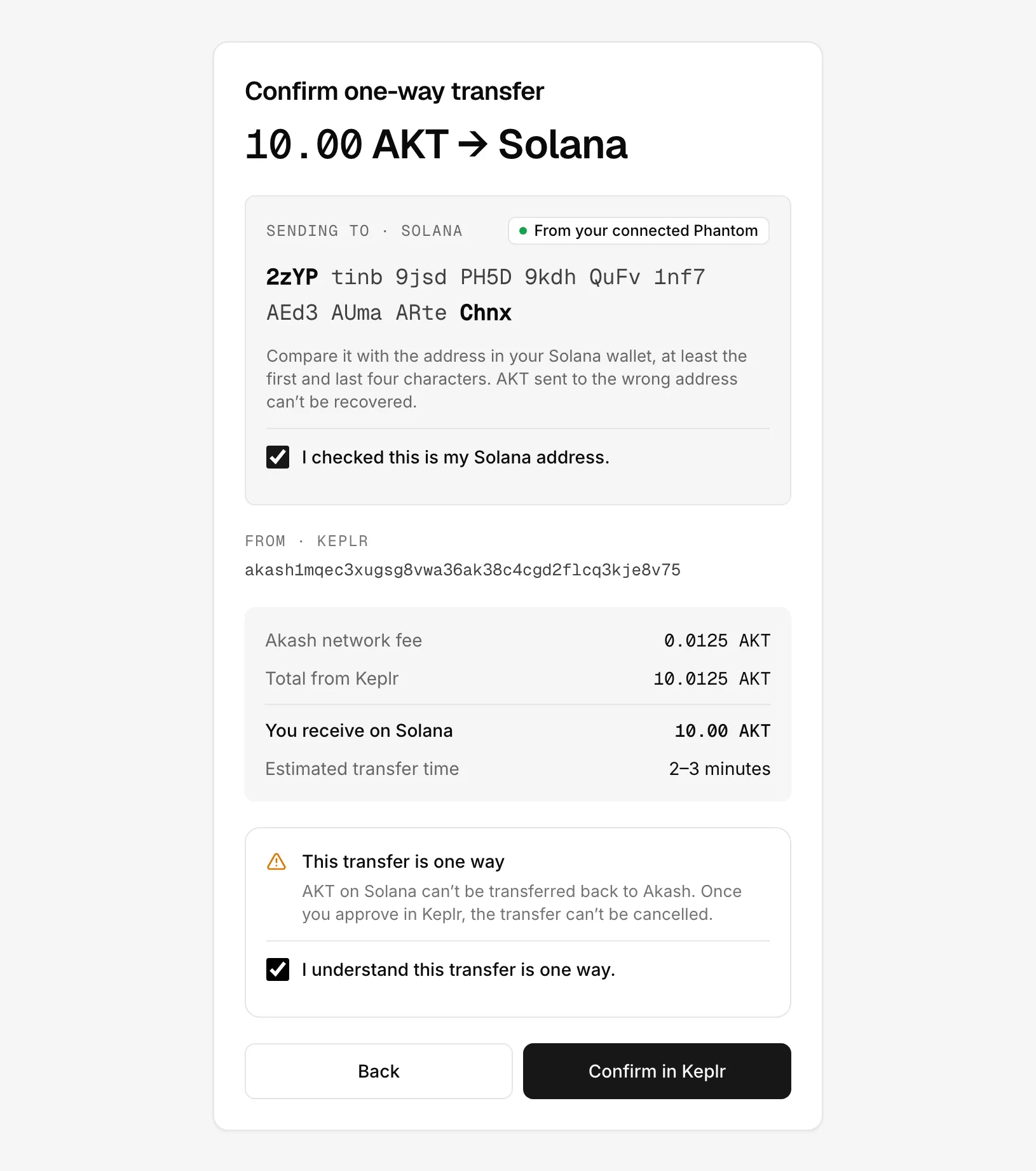
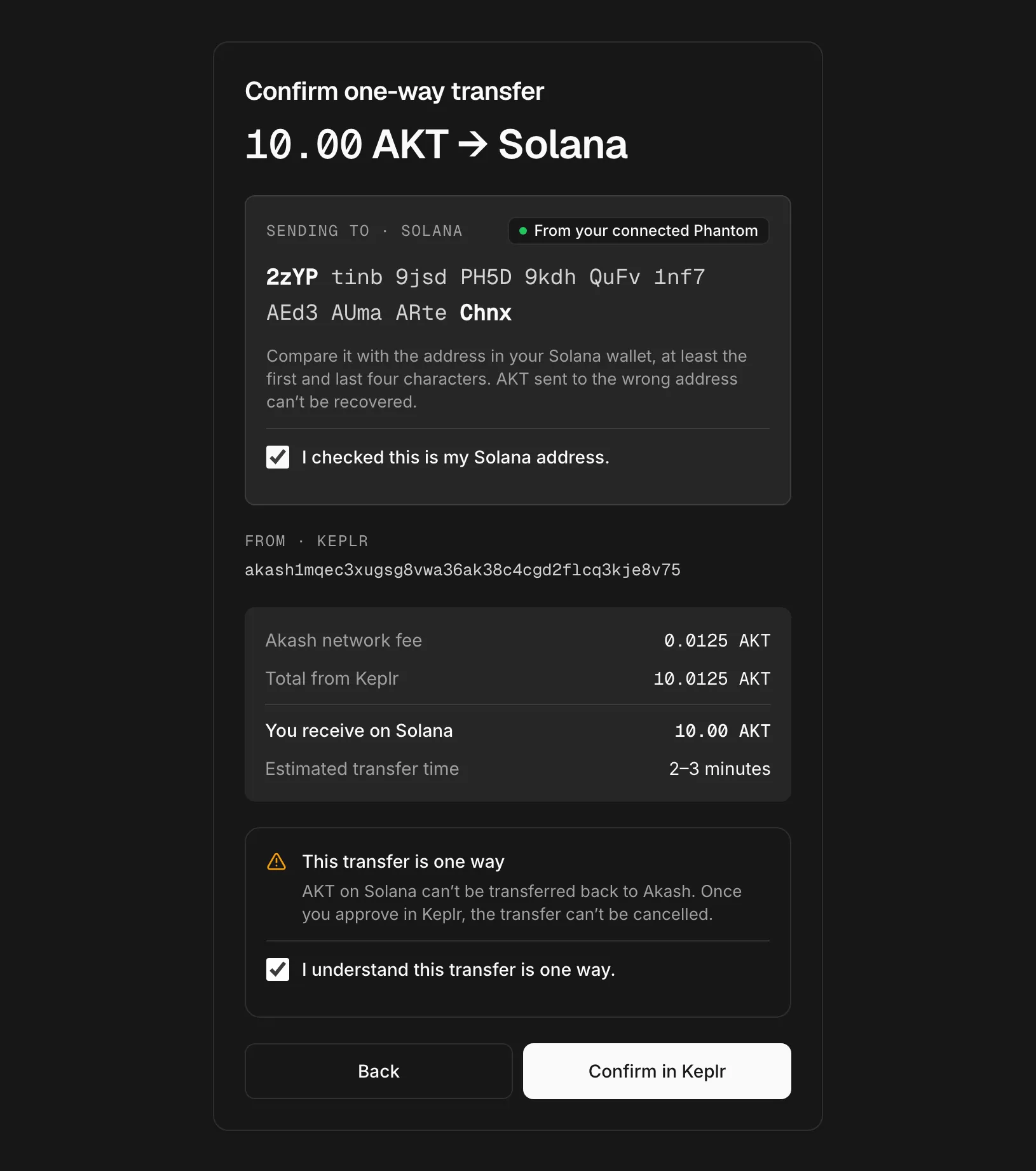
On a phone, the review appears in the page instead of a dialog.
STEP 5: Track the Transfer
After Keplr sends the deposit, the receipt shows Deposit submitted with the ledger ID, status, amount and destination. The ledger ID appears a few seconds later, once Akash includes the deposit in a block. Save the full owner/height/sequence ID. The list may abbreviate it; Copy keeps every character.
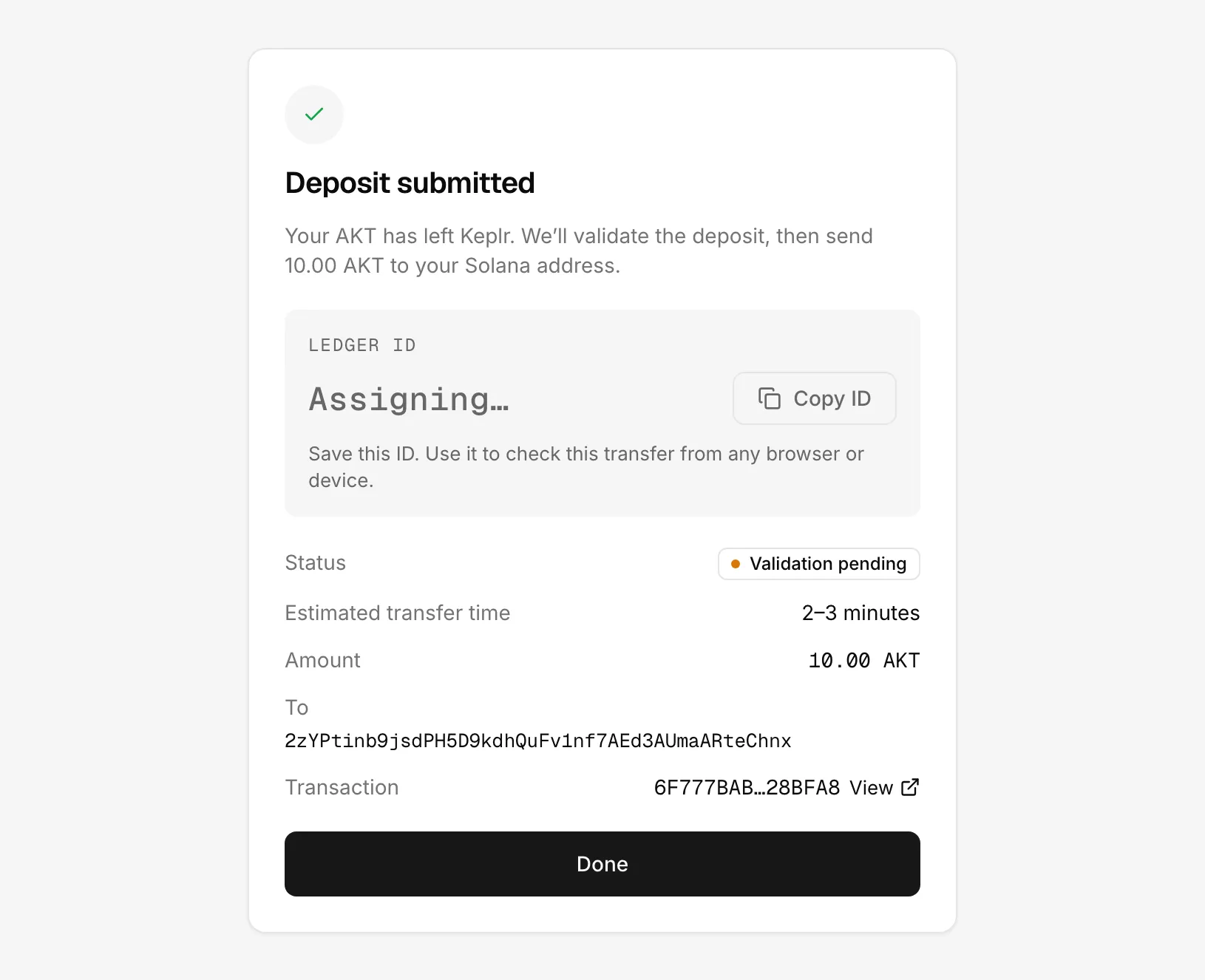
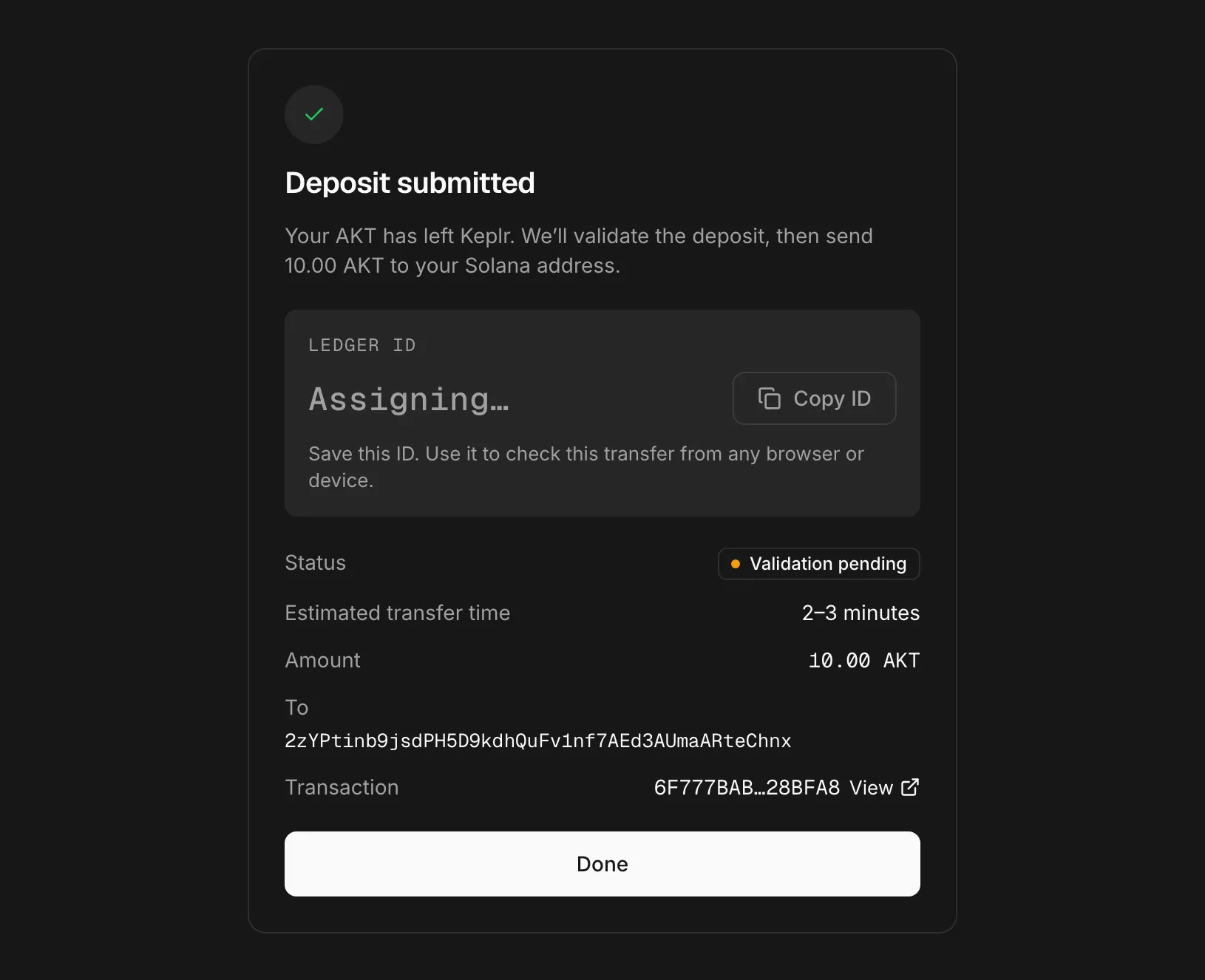
The tracker moves through four stages:
| Stage | What happens |
|---|---|
| Validating | Akash confirms your deposit and assigns a ledger ID. |
| Validated | Akash holds your AKT while Solana verifies your deposit. |
| Sending | Solana mints your AKT and finalizes the transaction. |
| Received | The AKT is in your Solana wallet. |
When the transfer finishes, all four stages are complete:
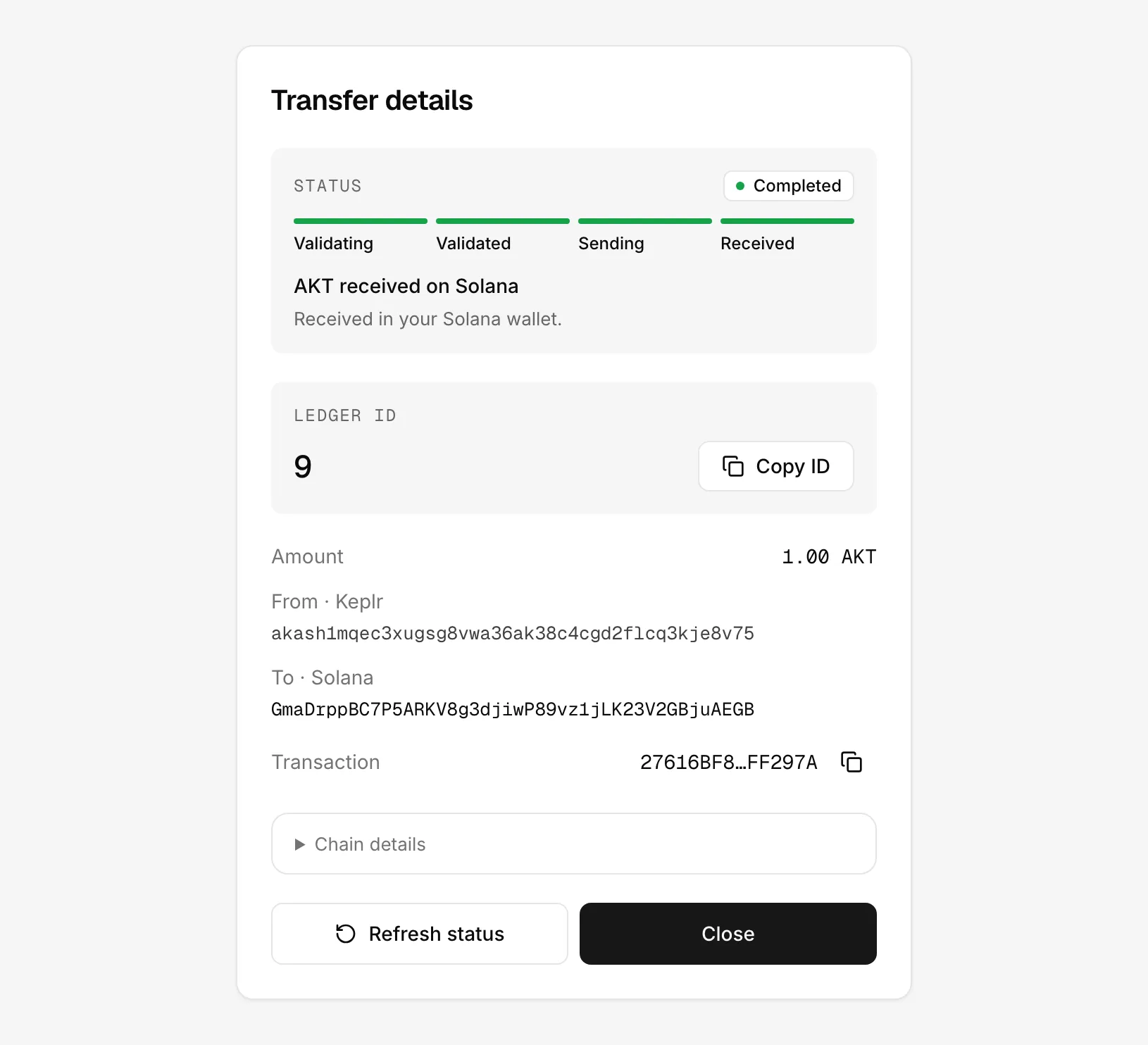
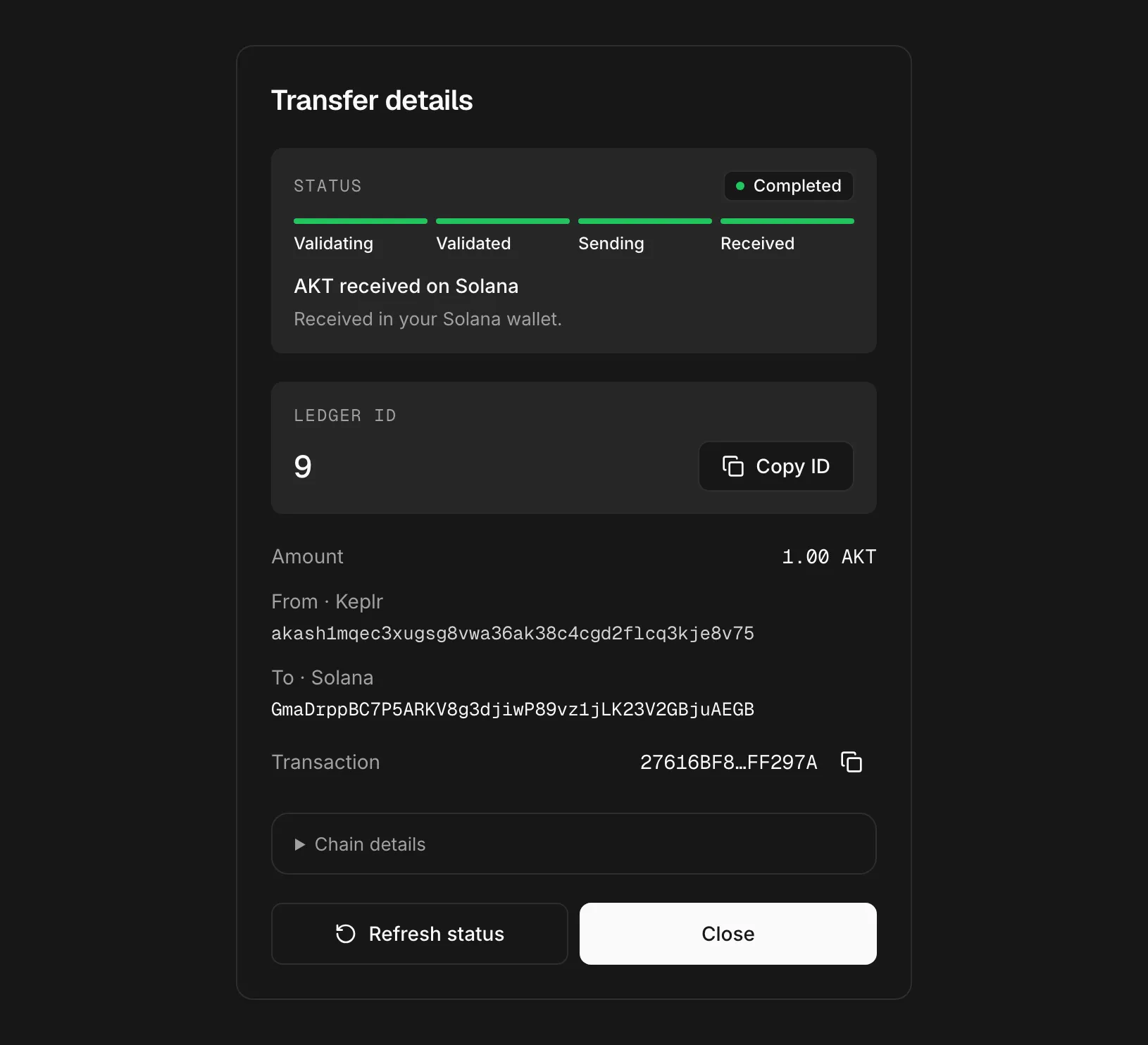
The receipt shows the estimated transfer time. You can close the page. The transfer continues, and the portal shows its current status when you come back.
Statuses
Your transfers lists the transfers started in this browser. Once Keplr is connected, it also discovers recent transfers from that account through the chain’s owner query. This works even when a transaction hash is unavailable.
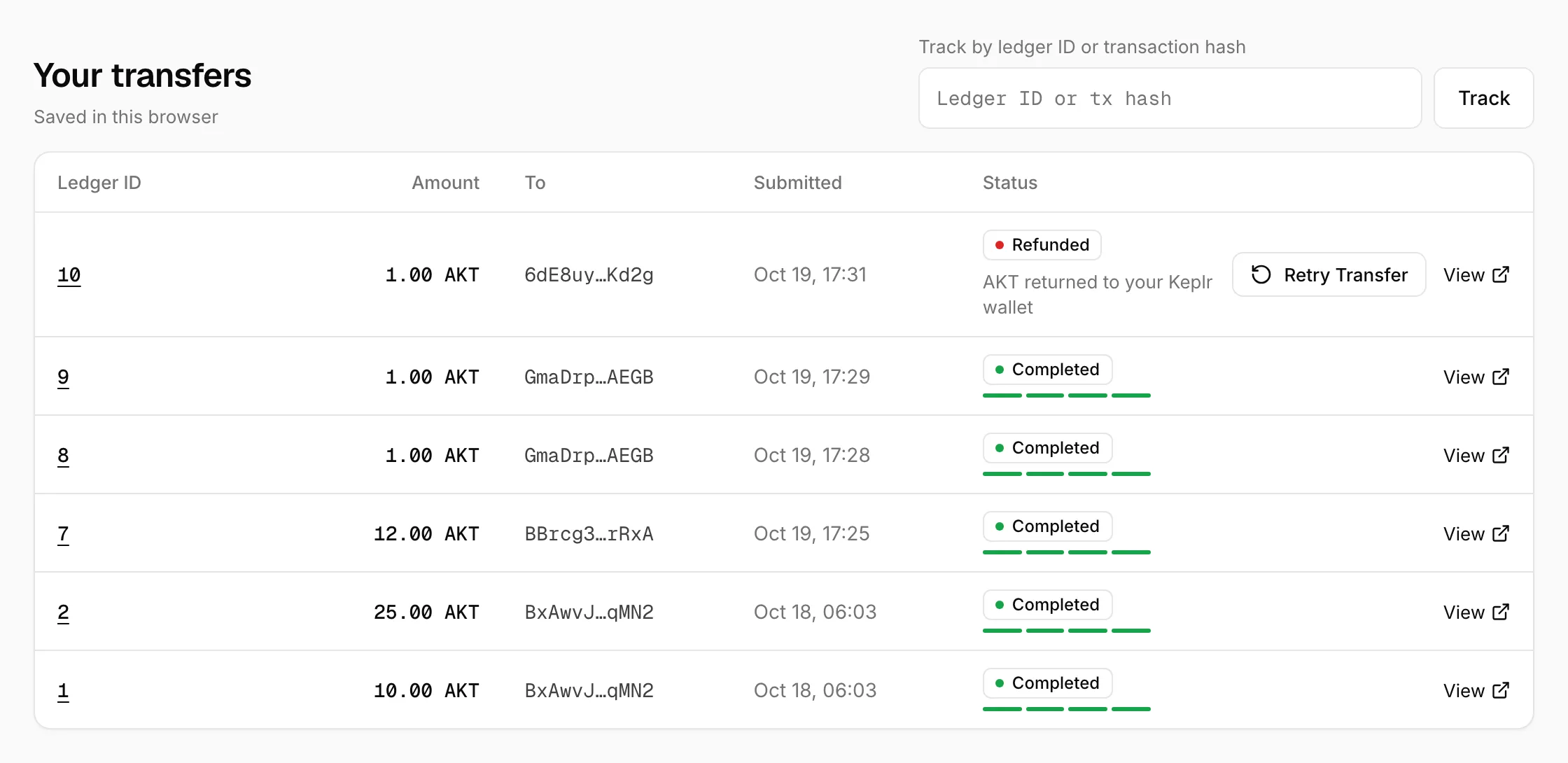
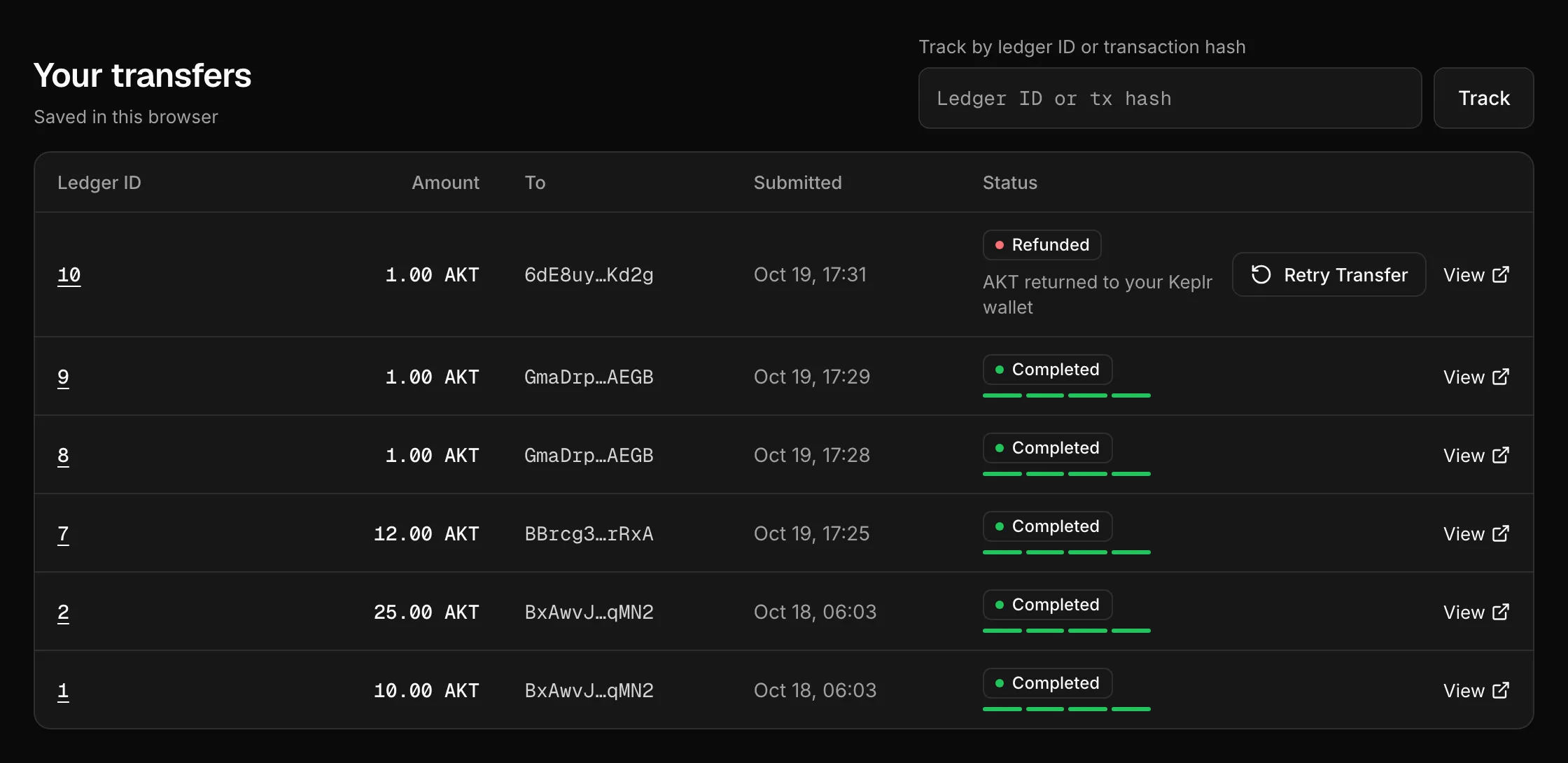
| Status | Meaning |
|---|---|
| Validation pending | The portal is checking your deposit on Akash. |
| Validated | Akash confirmed the deposit. Your AKT is queued to mint on Solana. |
| Transfer pending | AKT is being minted to your Solana address. |
| Completed | The AKT arrived on Solana. |
| Void requested | Governance requested a void. Solana confirmation and refund authorization are pending. |
| Refund pending | A void is confirmed. Payment is still waiting for the refund conditions. |
| Refunded | Your AKT is back in Keplr. The network fee isn’t returned. |
| Failed | Akash rejected the deposit, so your AKT stayed in Keplr. The network fee isn’t returned. |
| Submission rejected | Rejected by the node. The portal keeps checking in case an earlier copy went through. |
| Needs review | The transfer needs operator review. |
Don’t send a transfer again while it shows Submission rejected or Needs review. Open its details to distinguish the financial outcome from the hold: a completed mint or paid refund can still need review.
Status stale and Update unavailable mean the portal couldn’t refresh the status. It keeps trying, and the transfer itself isn’t affected.
Find a Transfer
- In this browser: open Your transfers.
- On another device: connect the same Keplr account. The portal finds that account’s transfers on Akash.
- By ID: under Your transfers, enter the ledger ID or the Akash transaction hash from your Keplr activity, then click Track.
View on any row opens its transfer details. Transfers found by owner can open directly by ID without a transaction hash.
History from the previous bridge stays stored separately in the browser. Its numeric IDs belong to the original network and are not interpreted as IDs on the new one.
Retry a Transfer
Refunded and Failed transfers have a Retry Transfer button. It fills in the same amount and address. Correct the address if it caused the refund, then review and send again.
See AKT in Your Solana Wallet
The AKT arrives as an SPL token in the Solana wallet you chose. Most wallets list it automatically. Check that its mint address matches the AKT mint on Solana.
Troubleshooting
Keplr Doesn’t Connect
- Install or unlock the Keplr extension, then reload the page.
- On a phone, open the portal from the browser inside the Keplr app.
The Address Is Refused
- Copy the address from your Solana wallet’s receive screen.
- Don’t use a token account address from a block explorer. The portal only accepts wallet addresses.
The Amount Is Refused
- Check the minimum and maximum in the help text under the amount.
- Open Wallet limits beside your Akash address to check your remaining allowance and reset time.
- Leave room for the network fee, or use Max.
- Use at most six decimal places and your browser’s decimal mark.
New Deposits or Transfers Are Paused
The portal blocks new transfers while deposits are switched off, or while Solana can’t verify Akash. Try again later. AKT from transfers you already sent stays locked on Akash until it’s minted or refunded.
The Deposit Failed
A deposit fails if it breaks the minimum or maximum amount per transfer, an enabled account epoch cap or the aggregate epoch cap. Send less when possible, or wait for Akash’s next configured quota period. Finishing another transfer does not restore sending capacity. See Limits.
The Transfer Takes Longer Than Expected
The Solana mint cap reached warning shows when the next mint reset is expected. Transfers waiting for mint capacity can continue after the reset. Keep the ledger ID and don’t send the transfer again. The AKT stays locked on Akash until it’s minted or refunded.
Related Resources
- Akash Migrate - How transfers, limits and refunds work
- Send AKT to Solana with akt - The same transfer from the command line